Features
A tour of Forge
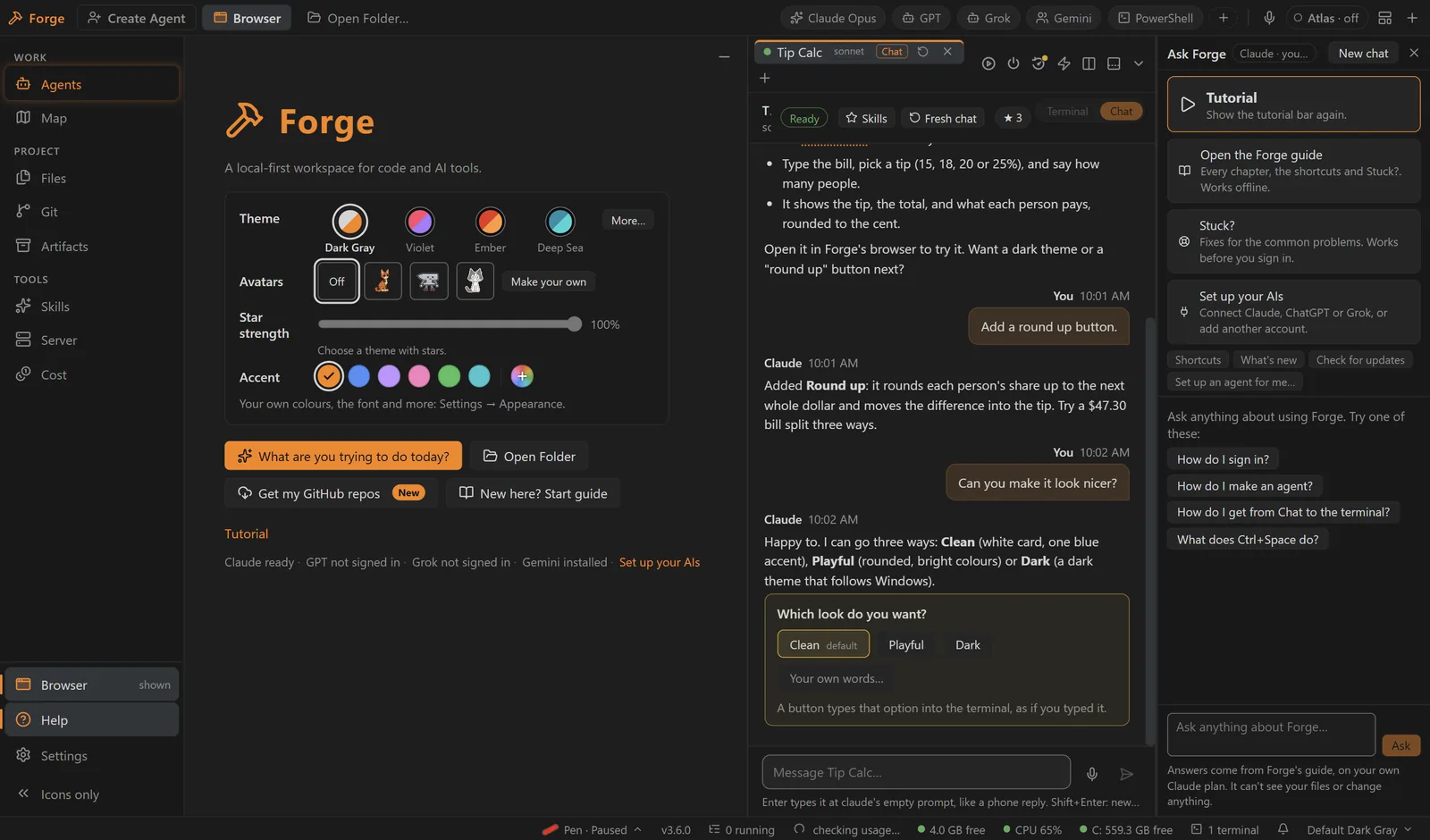
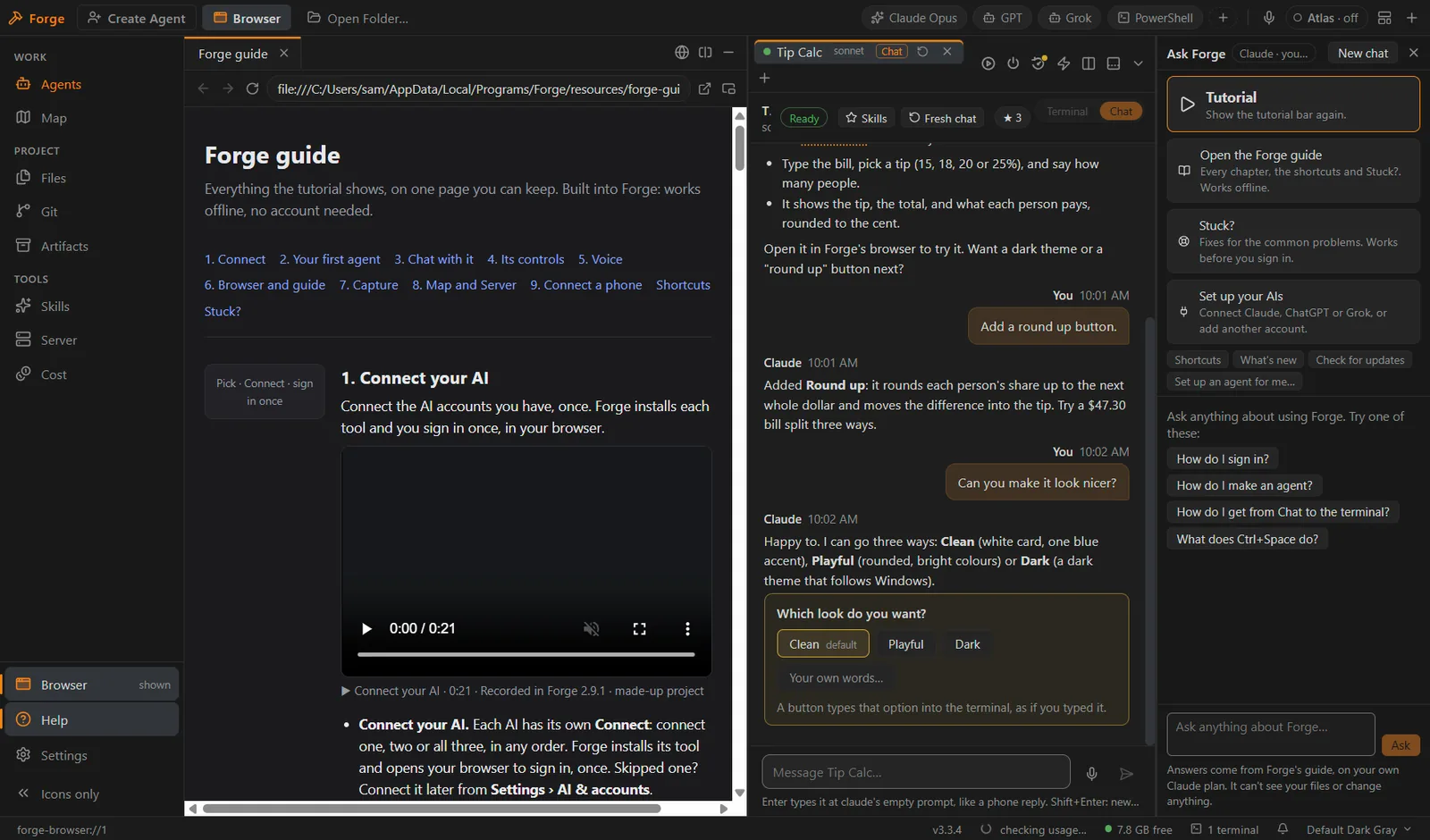
One row per part of Forge: what it does, and where to find it. The pictures are real screenshots, and the three text cards say what they are.
What's inside
Features
What Forge gives you, one line each. The rows below show each one.
Claude, ChatGPT, Gemini and Grok
All four in one window, each on your own account.
A browser built in
Pages your agent makes open right beside it, ready to try.
Voice
Press Ctrl+Space and talk instead of typing.
Screenshots to your agent
Press F4 to hand your agent a picture of your screen. Shift+F4 picks the part.
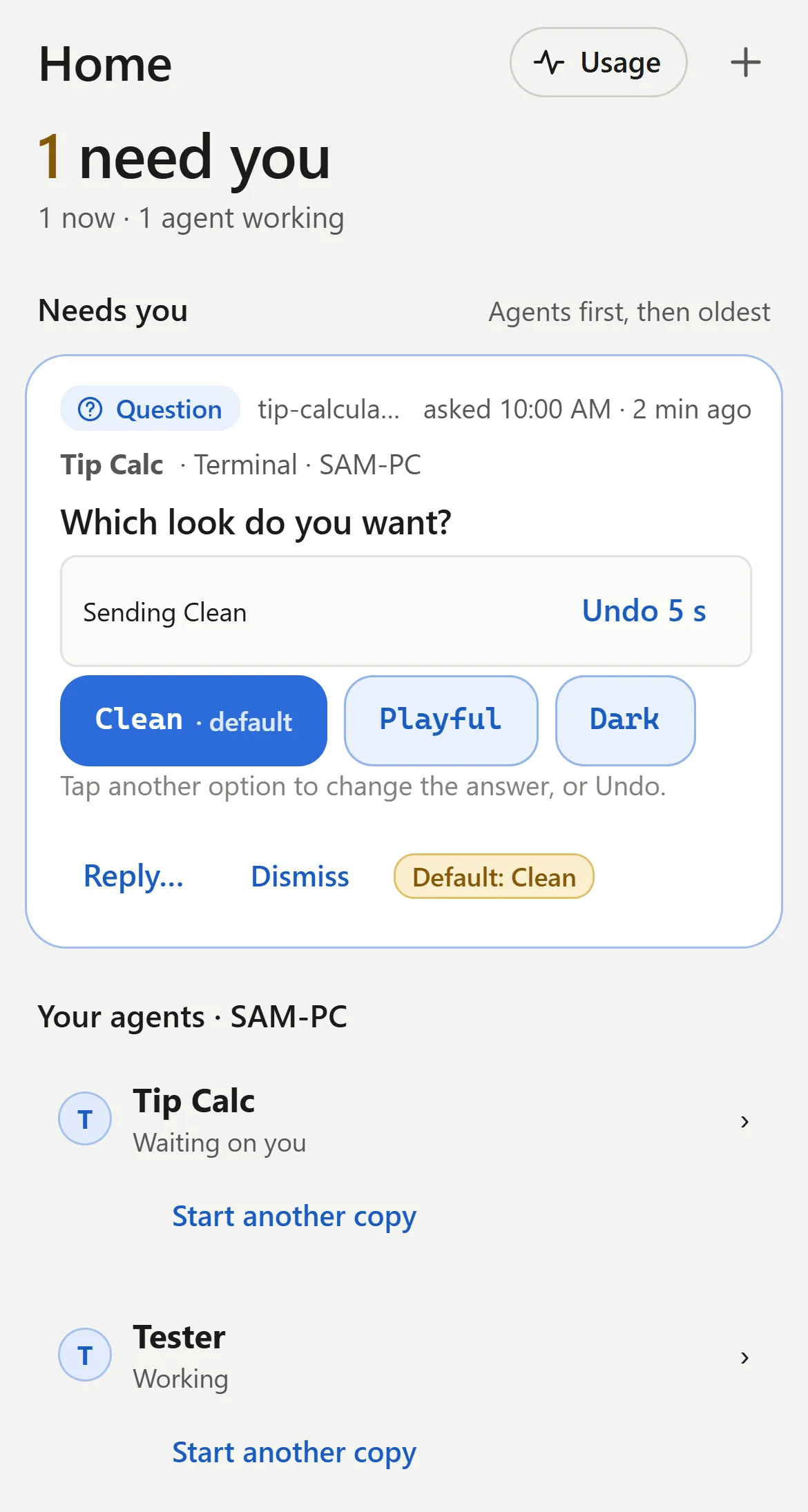
Answer from your phone
Questions show up on your phone as buttons to tap. For now it needs an invite word from me.
Skills one click away
Star the skills you use and they sit under the ⚡ button, one click away.
Pick up on another computer
Type /closedown to save your work to GitHub, then /startup on your other PC.
Help that knows Forge
Ask Forge answers from Forge's own guide, and a tutorial walks you through your first agent.
Artifacts gallery
Everything your agents made, as picture cards you can filter and search.
Chat
A chat on top of a real terminal
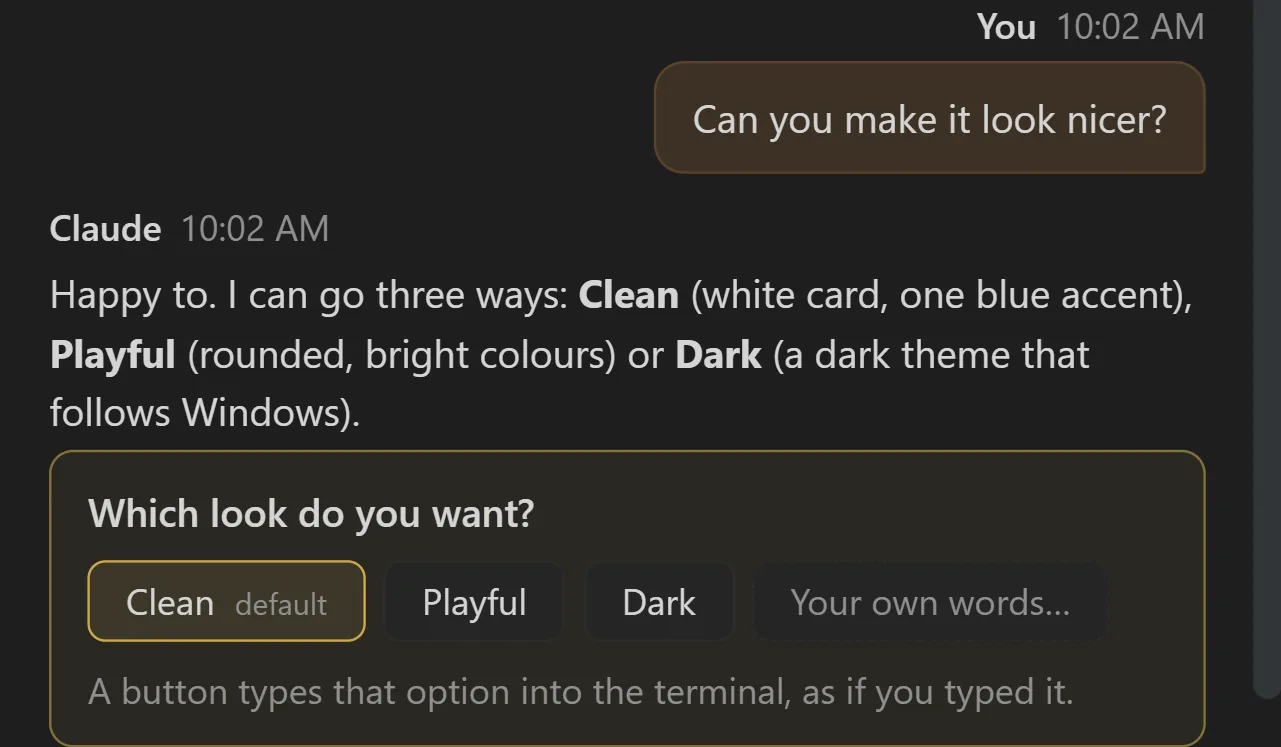
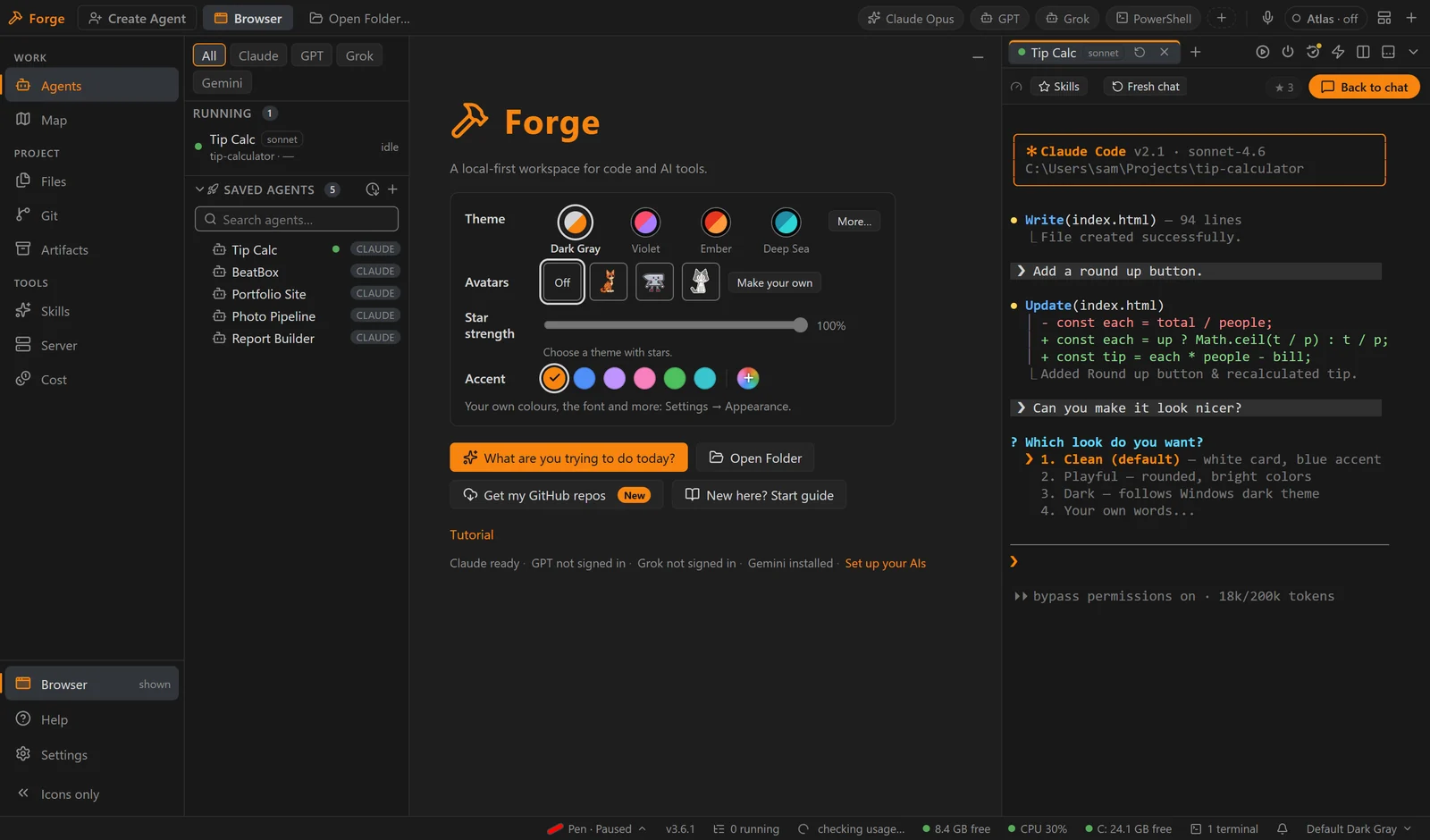
Every agent runs in a real Windows terminal, and Chat shows the same session as messages. When it asks you something, the answers are buttons; flip to the terminal any time, and nothing restarts.
Where: every agent's tab. Terminal | Chat on the tab, or Ctrl+Shift+Y, flips between the two.
The left rail
Every panel, one click from the left edge
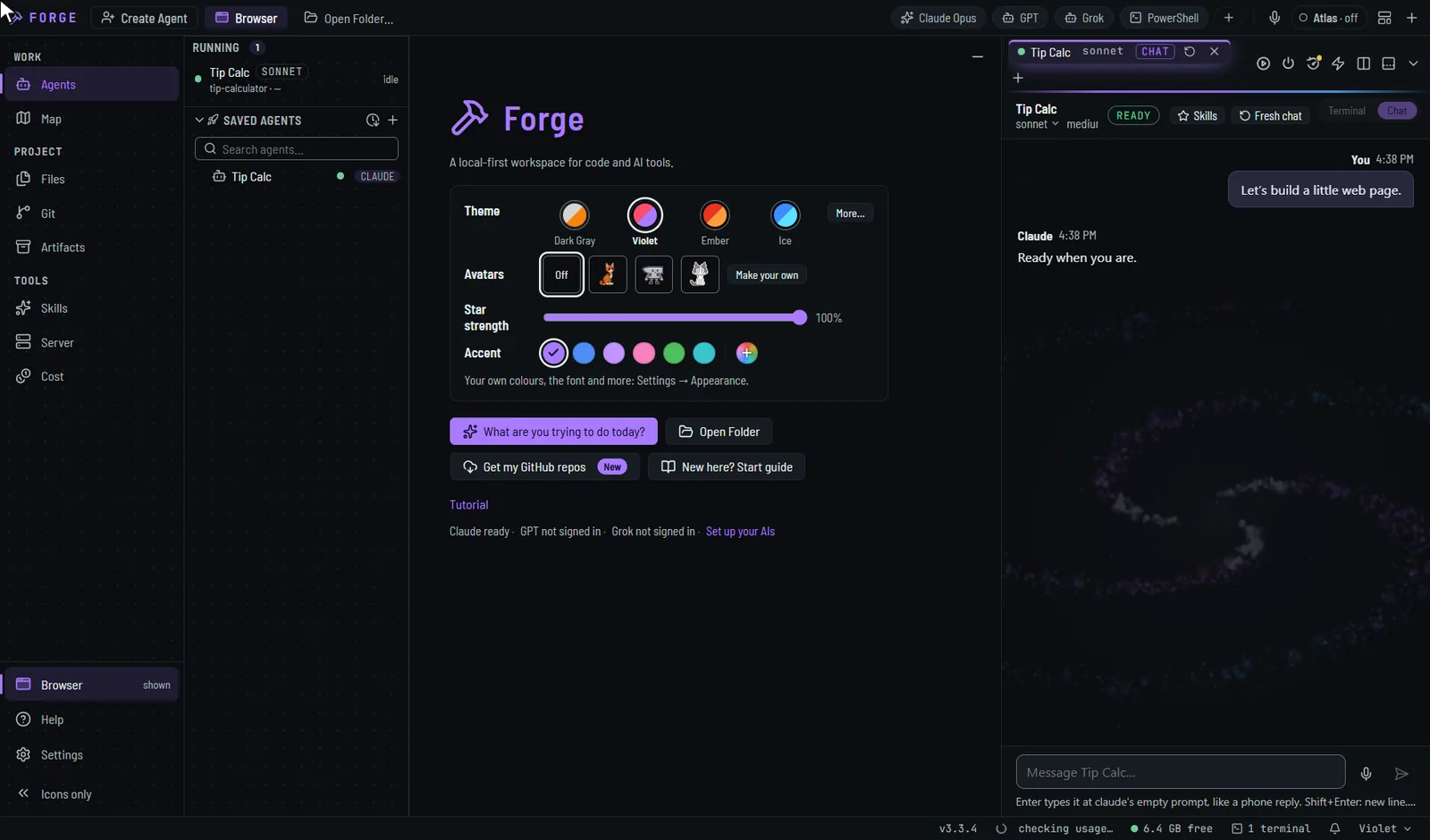
Agents, Map, Files, Git, Artifacts, Skills, Server and Cost each have one spot on a rail down the left side of Forge, with Browser, Help and Settings at its foot. Click one and its panel opens beside your work; click it again to close it.
The chevron folds the rail down to icons. Right-click an item to move or hide it.
Where: the left edge of the window. Settings › Appearance › Rail lists every item, with a Reset.
GitHub
Your GitHub repos, on this PC
Sign in to GitHub in your browser, tick the repos you want, and Forge downloads them, three at a time. Each one lands in your projects list, ready for an agent. Forge never sees your password. No Git on this PC yet? Forge offers to install it first.
Where: Get my GitHub repos on Forge's home screen, or in Settings › Folders & sync. Git on the left rail shows a count while downloads run.
Sign in to GitHub, pick the repos you want, and Forge downloads them to this PC.
Agents and crews
Agents, and crews of them
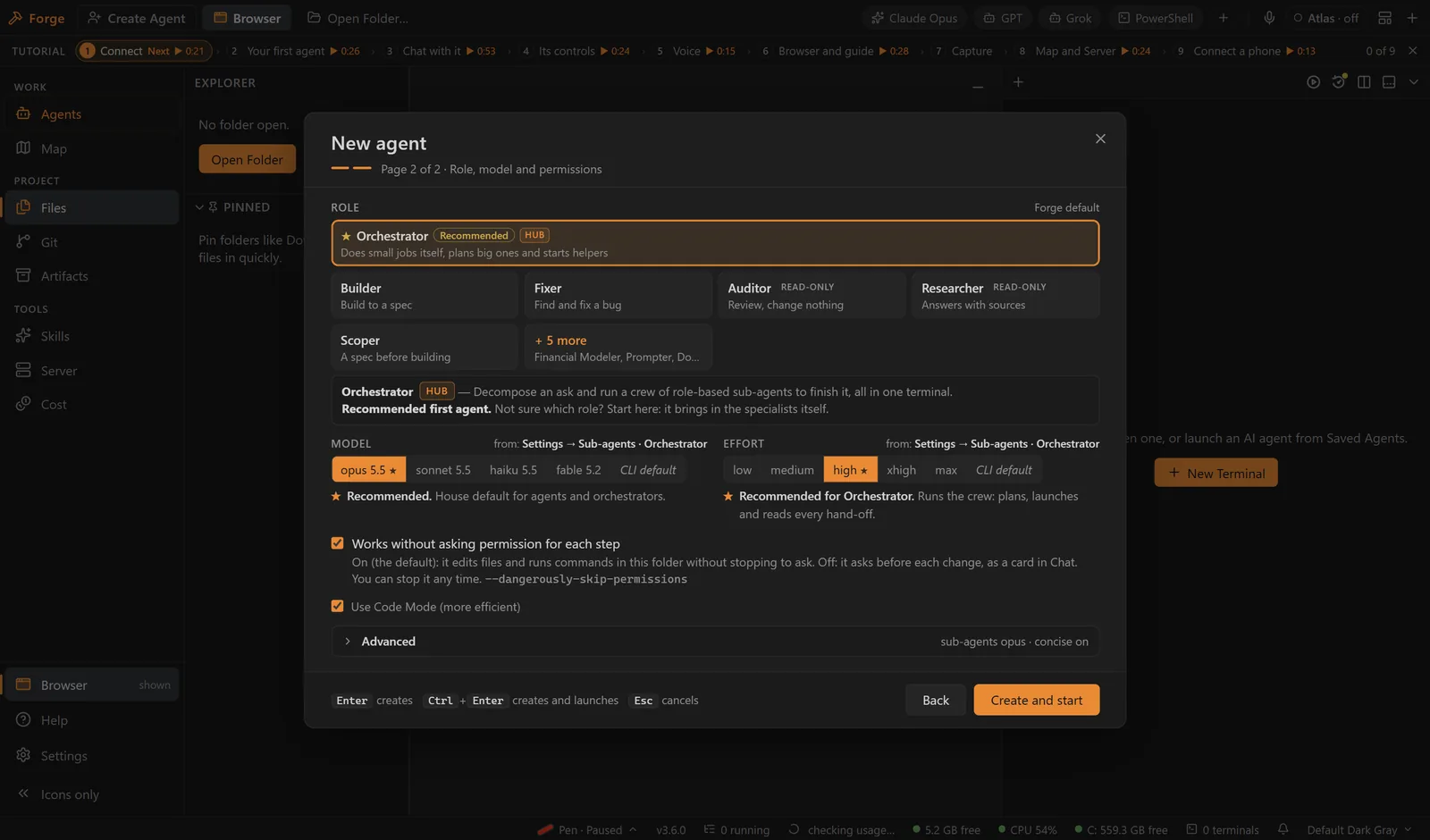
An agent is an AI (Claude, ChatGPT, Gemini or Grok) working in one folder on your PC. Give an agent a role: the Orchestrator does small jobs itself, plans big ones and starts helpers, such as a Builder, a Fixer or an Auditor.
Crews need Git for Windows (git-scm.com). One agent on its own doesn't.
Where: Create Agent in the top bar. Agents on the left rail (Ctrl+Shift+A) lists your saved agents so you can start one again in its project folder.
The Map
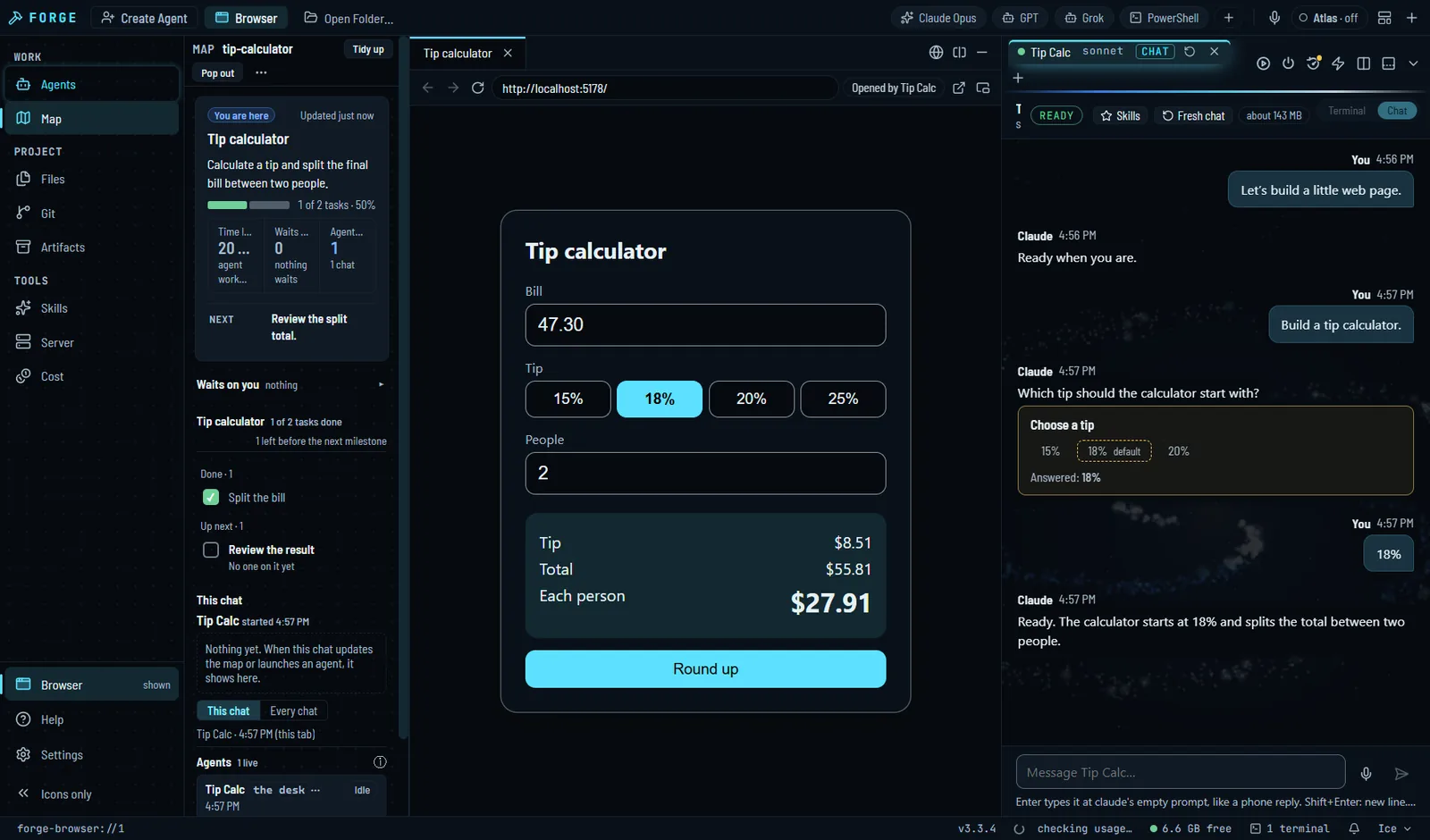
Easily track your tasks and projects
The Map shows what your Orchestrator planned, what's being worked on, what's done, and any question waiting for your answer. It's empty until an Orchestrator plans a bigger job; then it fills in by itself.
Where: Map on the left rail (Ctrl+Shift+M).
Automation and software
Jobs that run on their own, and real code
Agent automation. Triggers start a job from a folder, a clock or a mailbox. Every job asks first unless you let it start by itself. A job can wait for your review with its terminal still open.
Software development. A code editor, real Windows terminals and a Git panel to stage, commit, branch, push and pull. Run in Worktree… starts an agent on its own branch, and Merge & Remove Worktree brings its work back. Builder, Fixer and Auditor roles split building, fixing and review.
Where: Settings → Triggers turns triggers on; the Server button shows them and their history. Files and Git on the left rail.
Skills
Skills, one click away
Skills are saved instructions an agent can follow, like "review my code". Star the ones you like and they sit on the agent's tab, one click away.
Where: Skills on an agent's tab, and Skills on the left rail.
Voice and Capture
Talk to it, or show it your screen
Press Ctrl+Space (or click the mic), talk, and press it again: your words land in the message box, and nothing sends until you press Enter. Press F9 and drag a box over part of your screen, and that picture goes to your agent; every capture is on your clipboard too.
The speech engine and model (about 158 MB) download once, in the background, after your first agent.
Where: the mic. The capture keys are off on a new install: turn them on in Settings › Capture.
- Ctrl+Space
- Talk: press, speak, press again
- F9
- One shot: drag a box, and it goes to your agent
- Shift+F4 then F4
- Keep a box for this project, then grab it again with no dragging
- F8 / Shift+F8
- Put the newest capture in the message box, or throw it away
Forge's browser
Try what it made, right there
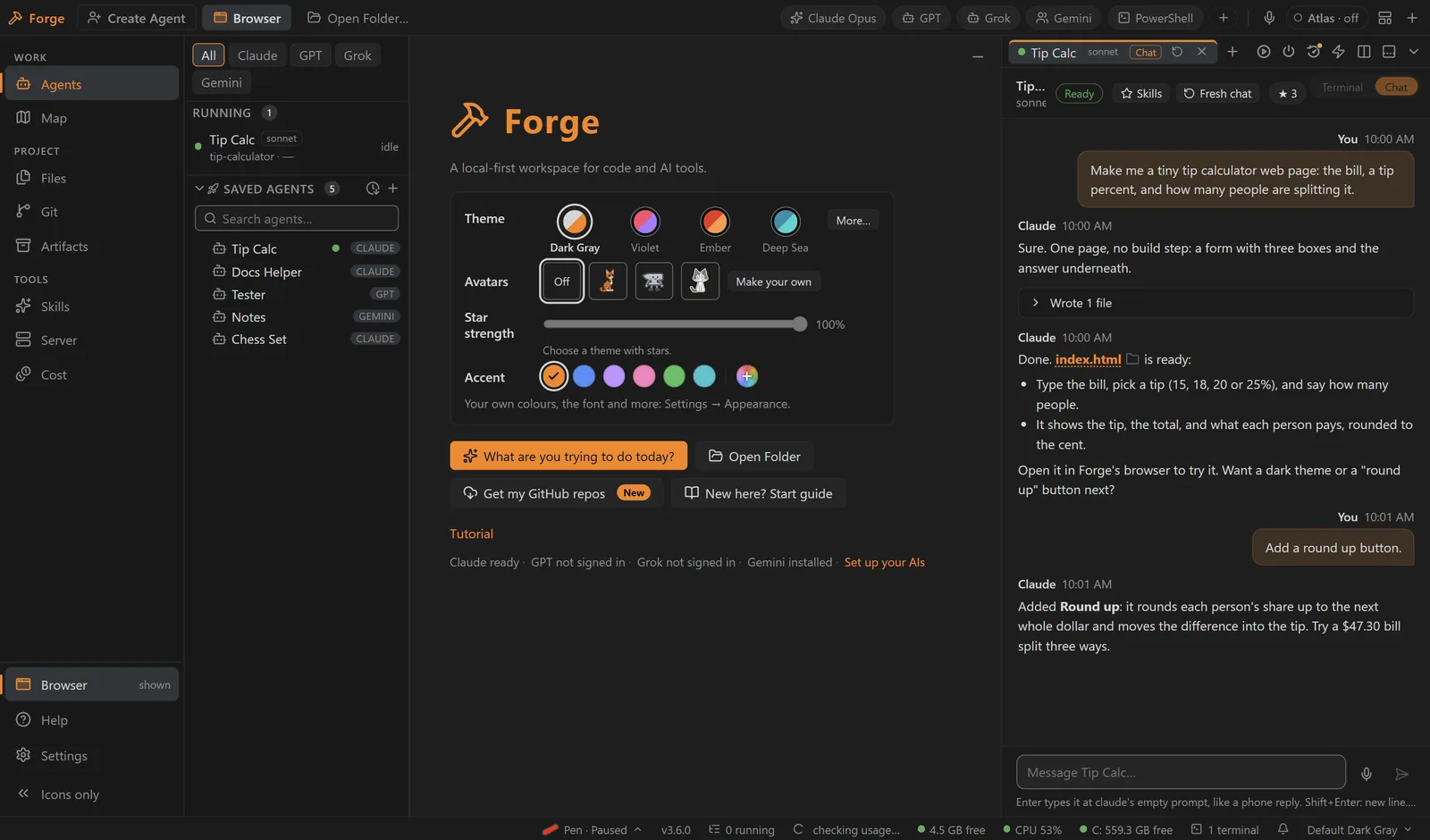
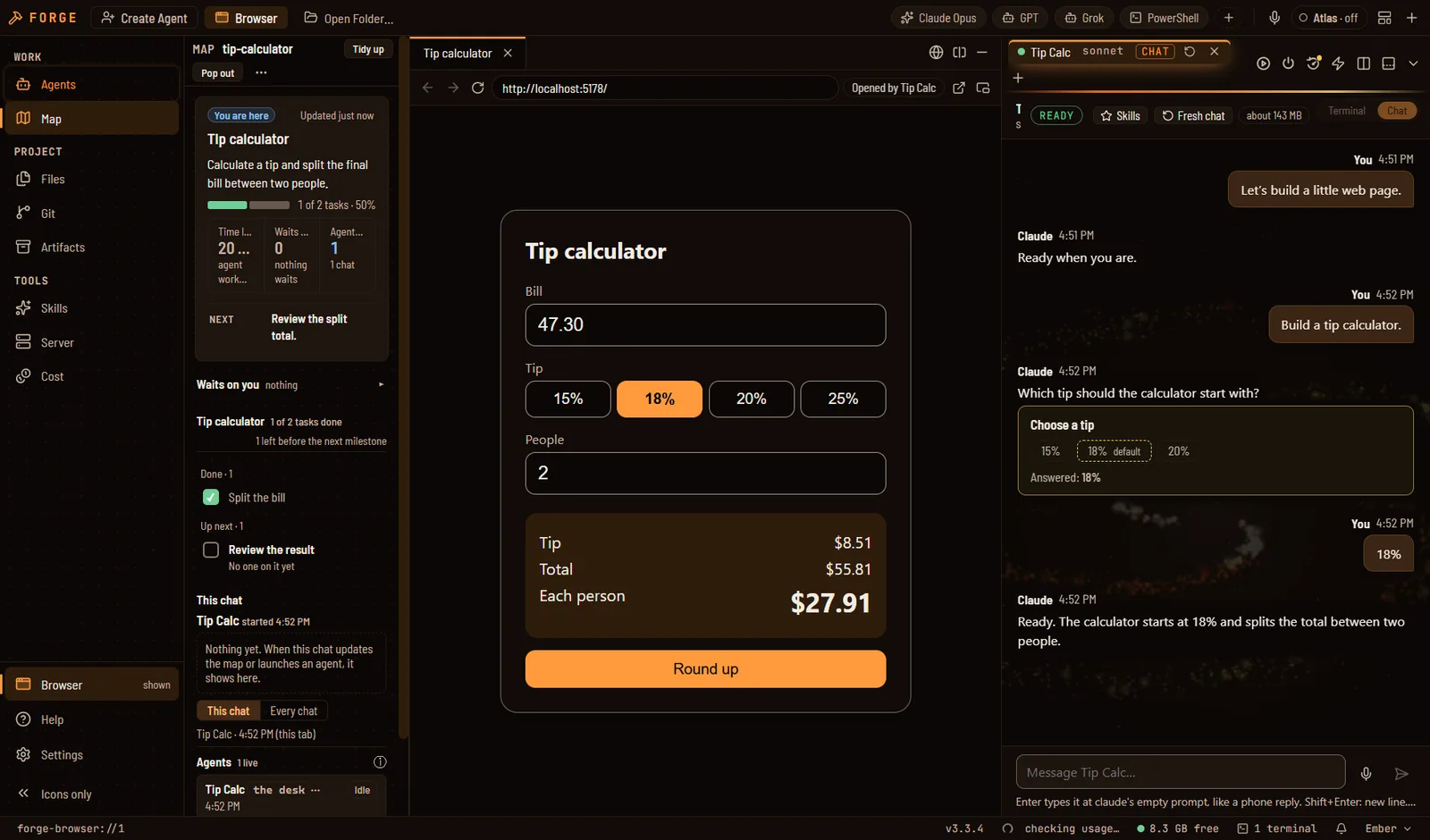
Files, web pages and links in Chat open inside Forge, next to your agent. Pages your agent opens show up there on their own (Settings › Show pages agents open, on by default).
Where: click a file or a link in Chat. Hid it? Browser at the foot of the left rail (Ctrl+Shift+B) brings it back.
Artifacts
Everything your crew has produced
The Artifacts panel collects the Claude artifacts your agents publish, the pages they make and the sites they open. Search it, or open the whole gallery with View all.
Where: Artifacts on the left rail.
No artifacts yet. Claude artifacts your agents publish, pages they make and sites they open show up here.
Phone and Server
Answer from your phone
Connect your phone, and your agents' questions show up there too, as buttons to tap. For now, connecting a phone needs an invite word from me: ask and I'll send one.
Server mode is for the one PC you leave running for your phone: it stays awake, restarts itself after updates, and pushes your phone when an agent needs you. It's off by default, and most people leave it off.
Where: Settings (the gear at the foot of the left rail) › Devices › Connect another computer or phone. Server on the left rail.
Help and the guide
Help that knows Forge
Help at the foot of the left rail opens the tutorial, the Forge guide, Stuck? and Ask Forge. Ask Forge answers from the guide, on your own Claude plan; it can't see your files or change anything.
The Forge guide is on this site too, the same guide Forge opens from Help, so it matches the version you download:
- Nine chapters, from connecting an AI to connecting a phone
- Every keyboard shortcut
- Stuck?: fixes for the common problems
Where: Help at the foot of the left rail. On the web: the Forge guide.
FAQ
What does it cost?
Forge is free. The AI comes from your own account, for example a paid Claude or ChatGPT plan, or a free Grok account to start. Grok's free limits are low; SuperGrok raises them. Forge has no AI of its own.
Do I need to know how to code?
No. You ask in plain words and answer its questions, often with a click. Agents show you code now and then; you can ignore it. Getting started walks you through a first small project.
I closed Forge. Why is it still running?
Closing the window leaves your agents running, and Forge waits in the tray by the clock. The first time, it asks: Close to tray or Quit Forge. To stop it later, right-click its tray icon → Quit Forge.
Windows says it "protected your PC". Is Forge safe?
That warning appears for apps that aren't code-signed, and Forge isn't yet. Click More info, then Run anyway. If you get a block with no Run anyway button, that's Windows' Smart App Control: don't turn it off, message me instead. The install step, with pictures
Does Forge send my files anywhere?
Forge itself has no analytics and no AI. Your agents talk to their AI company (Anthropic, OpenAI, Google or xAI), the same as those tools always do. Forge checks GitHub for updates, and if you connect a phone, the phone's messages pass through Forge's relay.