Edge may say the file isn't commonly downloaded. Point at the download, click …, then Keep. If it asks again, open Show more and click Keep anyway. Chrome may ask the same; choose Keep.
Forge-Setup.exe Forge-Setup.exe isn't commonly downloaded. Make sure you trust Forge-Setup.exe before you open it.
…
Delete
Keep
Report this file as safe
A drawn copy of Edge's downloads panel, not a screenshot
2Install it
Click the file in your browser's download list, or double-click it in Downloads. A blue box says Windows protected your PC. Click More info, then Run anyway.
Windows protected your PC
Microsoft Defender SmartScreen prevented an unrecognized app from starting. Running this app might put your PC at risk. More info
Don't run
Windows protected your PC
Microsoft Defender SmartScreen prevented an unrecognized app from starting. Running this app might put your PC at risk.
App: Forge-Setup.exe Publisher: Unknown publisher
Run anywayDon't run
Drawn copies of the Windows boxes, not screenshots
That's the only question. Forge installs for your Windows user only, with no admin password, and opens by itself when it has finished. Your antivirus may scan it first, which can add a pause.
Why the warning?Windows warns about apps it doesn't recognise. Forge isn't code-signed yet, so Windows can't tell who made it and lists the publisher as unknown.
A block with no Run anyway button? Some newer Windows 11 PCs have Smart App Control turned on. It blocks apps that aren't signed and offers no way past for a single app. Please don't turn it off for Forge: message me and we'll sort it out together.
3Connect an AI
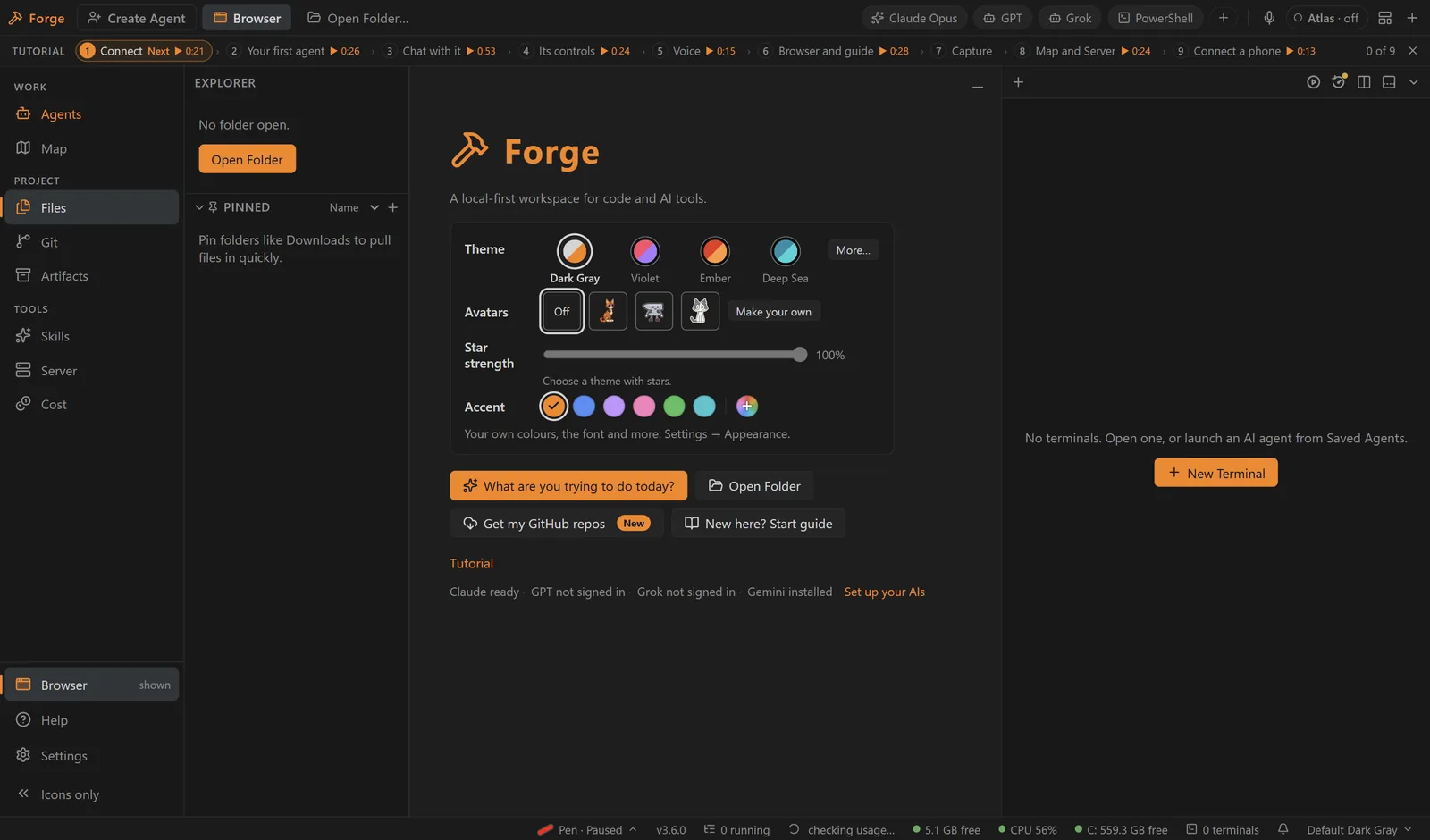
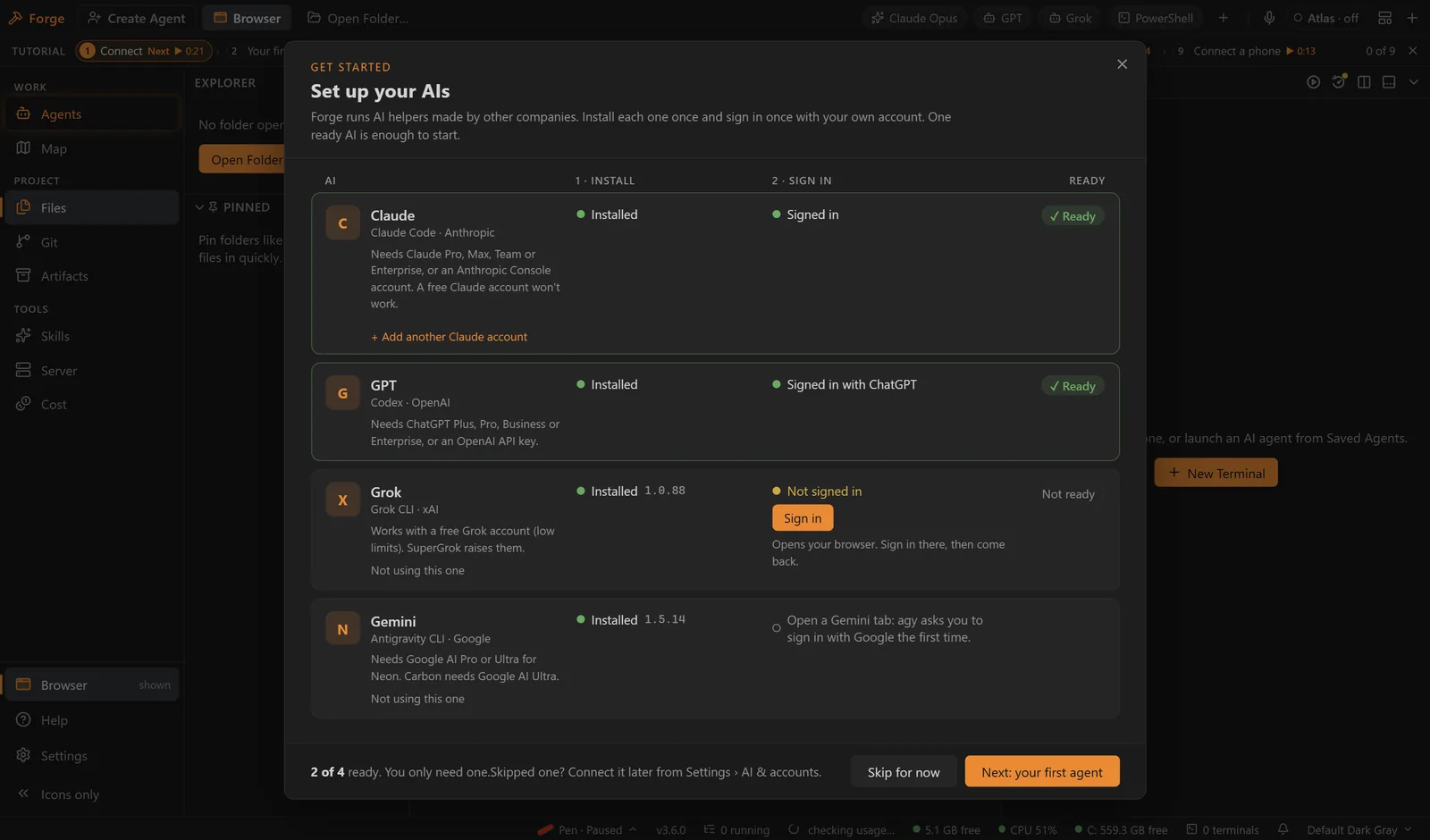
On Forge's home screen, click Set up your AIs. Claude, ChatGPT and Grok each have their own Connect: Forge installs its tool and opens your browser so you sign in once. One ready AI is enough to start.
From Forge's tutorial: install, sign in, ready. Recorded with a demo account in Forge 2.9.1, before Gemini joined.
Claude
Needs Claude Pro, Max, Team or Enterprise, or an Anthropic Console account. A free Claude account won't work.
ChatGPT
Needs ChatGPT Plus, Pro, Business or Enterprise, or an OpenAI API key.
Grok
Works with a free Grok account, with low limits. SuperGrok raises them.
Gemini
Needs Google AI Pro or Ultra for Neon. Carbon needs Google AI Ultra. Open a Gemini tab: it asks you to sign in with Google the first time. Forge can't see that sign-in, so Gemini's row shows neither Ready nor Not ready.
Already signed in?
If Claude Code or Codex is already signed in on this PC, Forge uses that sign-in.
Sign in opens your browser. Sign in there, then come back to Forge. Don't see the browser? It may have opened behind Forge: look on the taskbar.
If the browser shows a code instead, a Sign in card in Forge says If the browser shows a code, paste it here. Paste it and press Send code.
Skipped one? Connect it later from Settings › AI & accounts.
4The tutorial bar
Along the top of Forge is the tutorial: nine short chapters, from Connect to Connect a phone. Click a chapter, then Start, and it shows you around Forge itself.
Down the left edge is the rail: Agents, Map, Files, Git, Artifacts, Skills, Server and Cost, with Browser, Help and Settings at its foot. Click one and its panel opens beside your work; click it again to close it.
Closed the bar? Help at the foot of the left rail › Tutorial shows it again. The same chapters are on the web, too: the Forge guide.
5Your first agent
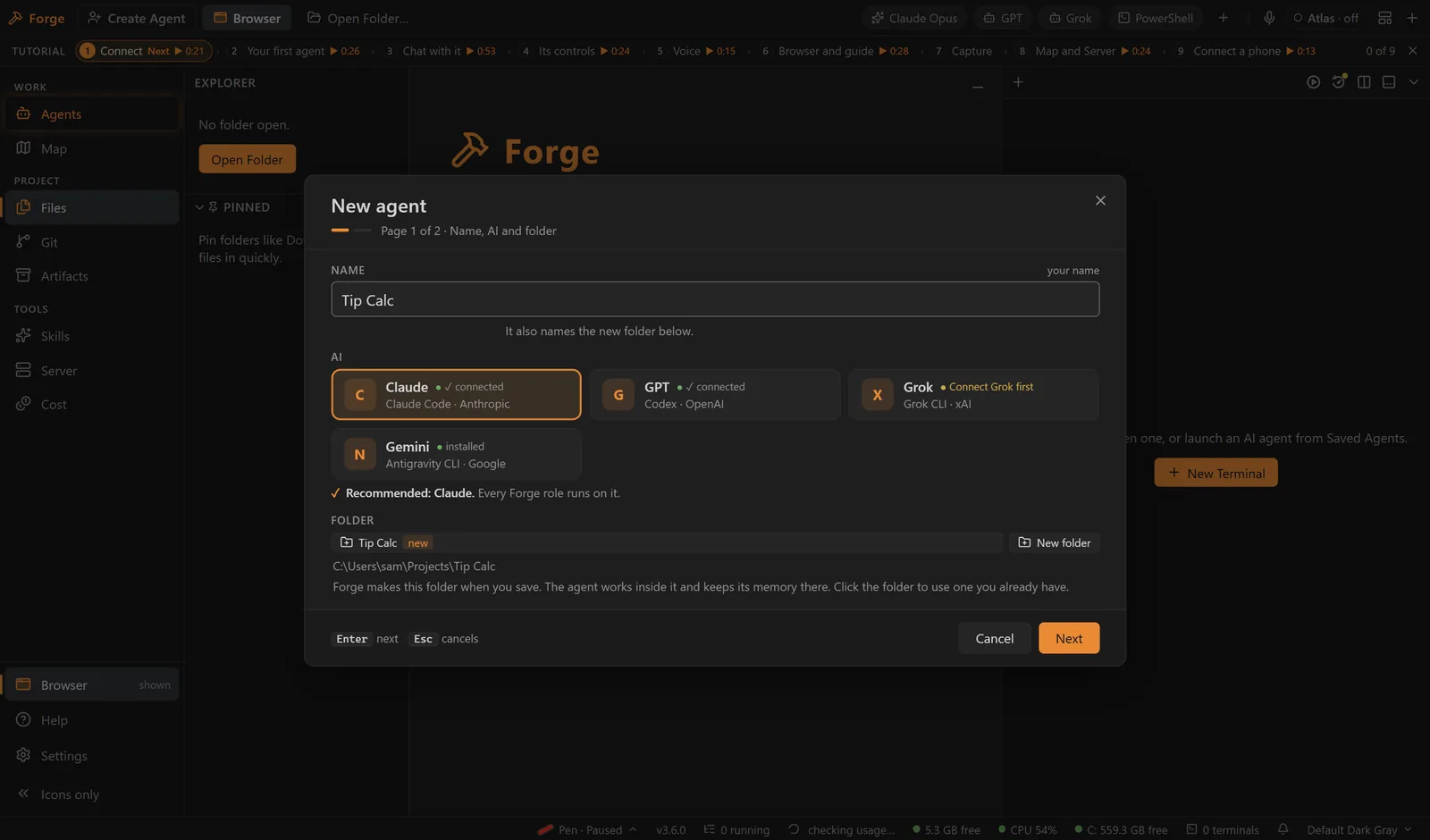
Click Create Agent in the top bar. Every agent starts there.
From Forge's tutorial: name, folder, role, then create. The agent here is called Reports Dashboard.
Name it. The name also names its new folder. The box starts with a suggestion, so press Ctrl+A first and your typing replaces it.
Choose its folder: Forge suggests a new one named after it and shows its full path. Keep it, pick another place, or click the folder to use one you already have.
Pick its AI. Claude is recommended. Then press Next.
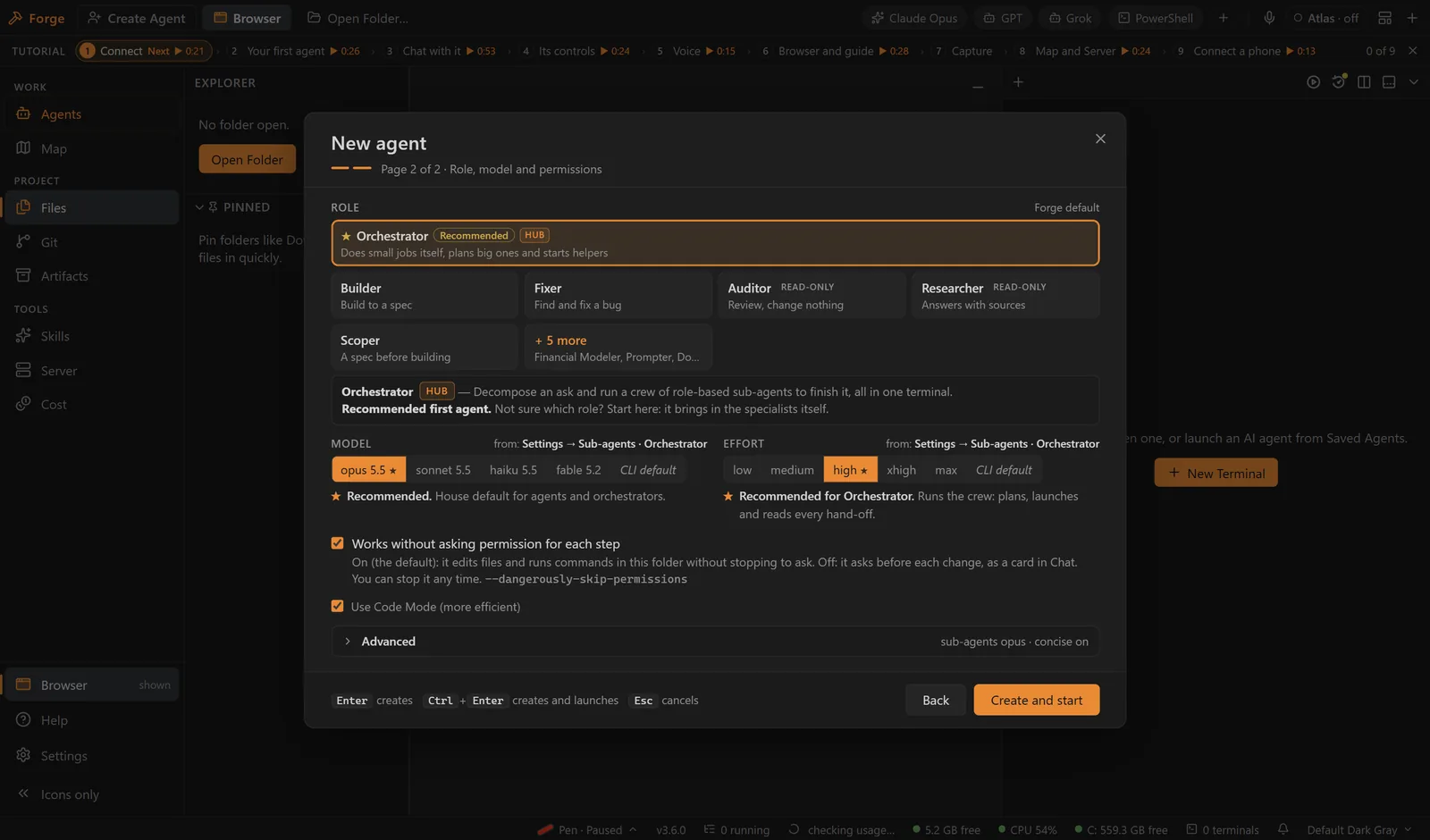
Page 2 is its role, model and permissions. Keep the starred choices: the Orchestrator, which does small jobs itself, plans big ones and starts helpers, with the starred model and effort.
Works without asking permission for each step starts checked. In Forge's words: On (the default): it edits files and runs commands in this folder without stopping to ask. Off: it asks before each change, as a card in Chat. You can stop it any time.
Press Create and start. Your agent opens in Chat.
Already have code on GitHub?On Forge's home screen, click Get my GitHub repos. You sign in through your browser and tick the repos to download. No Git on this PC yet? Forge offers to install it first.
6Your first chat
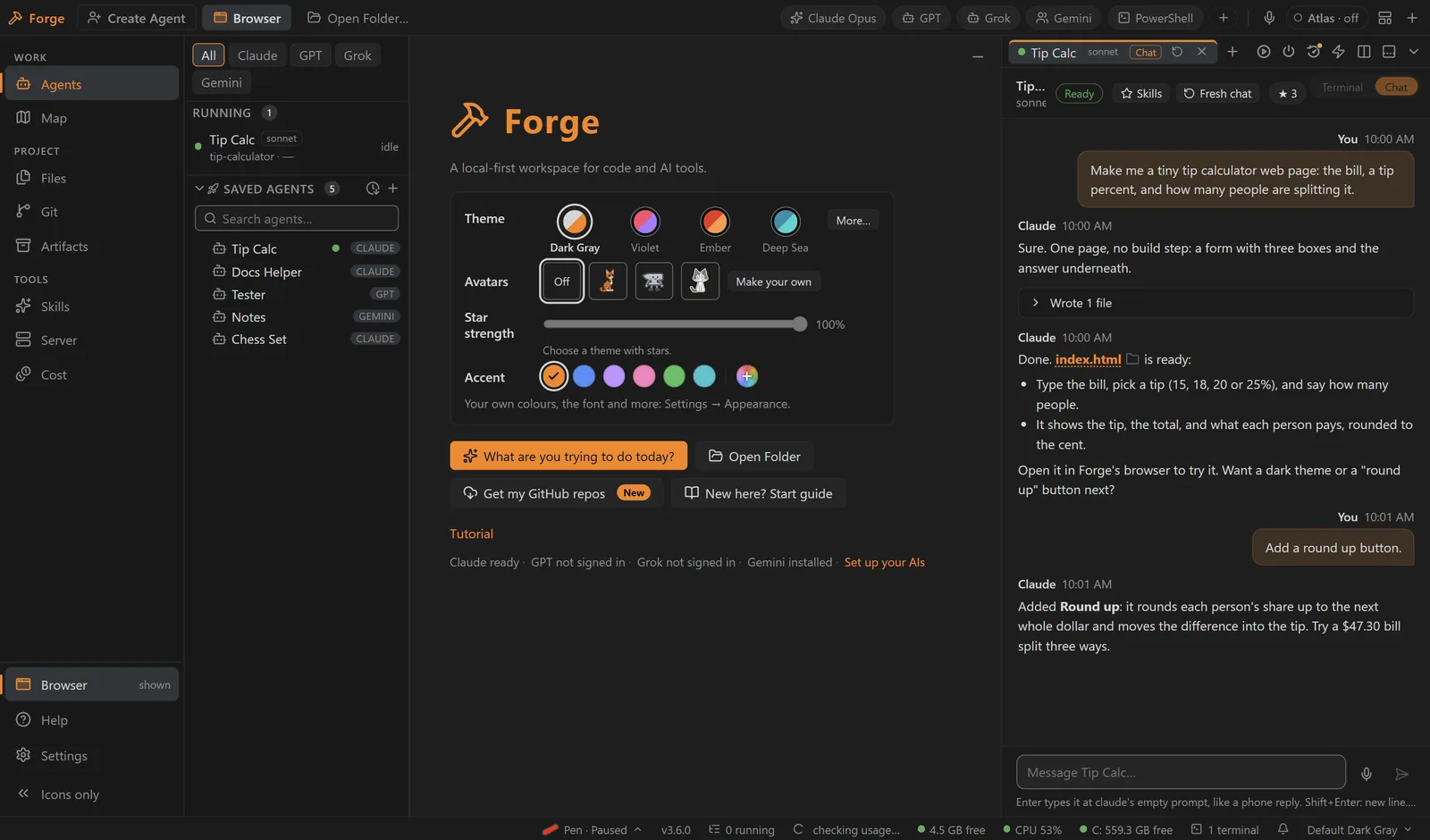
Type what you want, like a text message, and press Enter. A good first job:
Make a one-page tip calculator in index.html: the bill, a tip percent, how many people, and what each person pays.
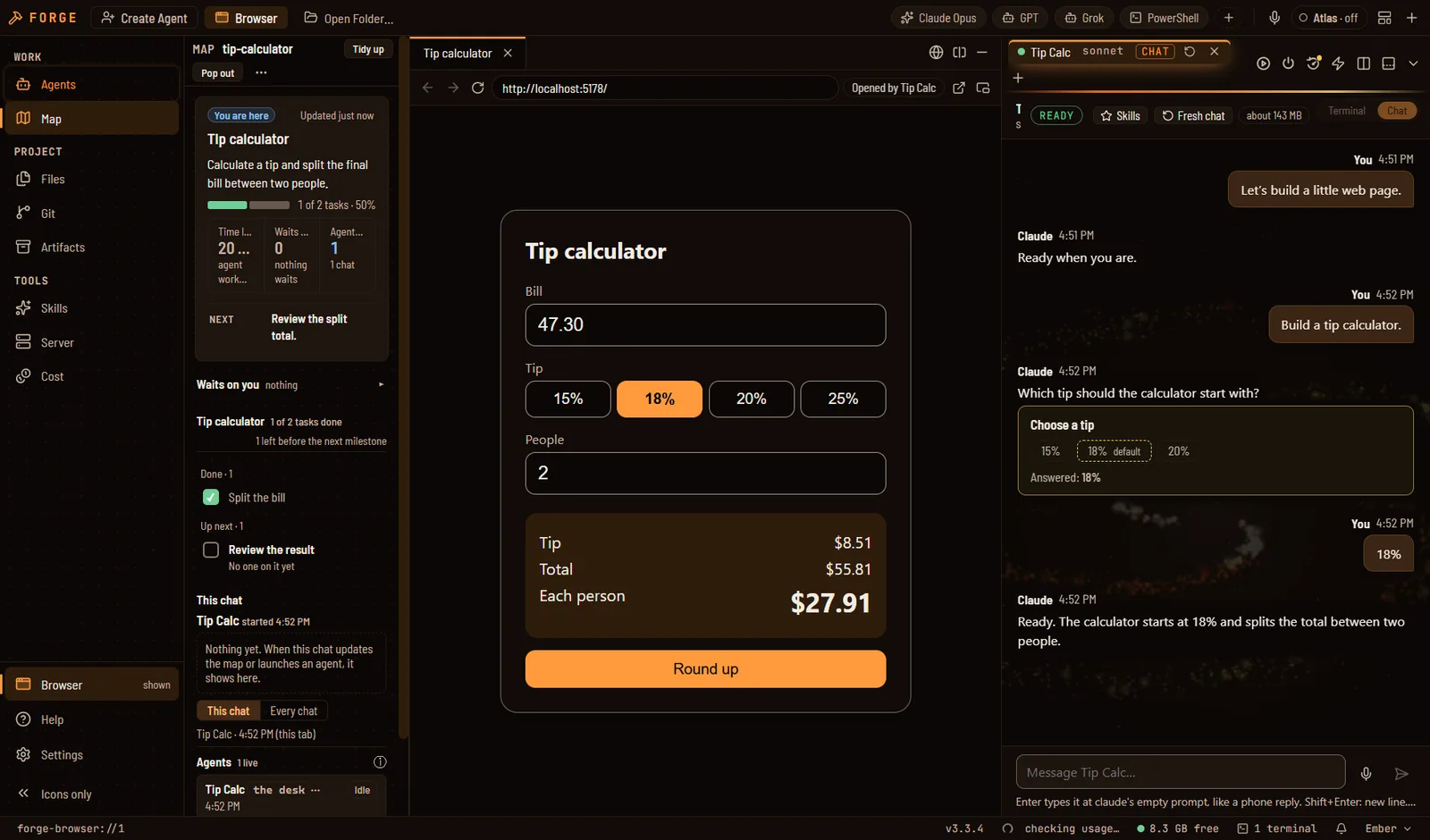
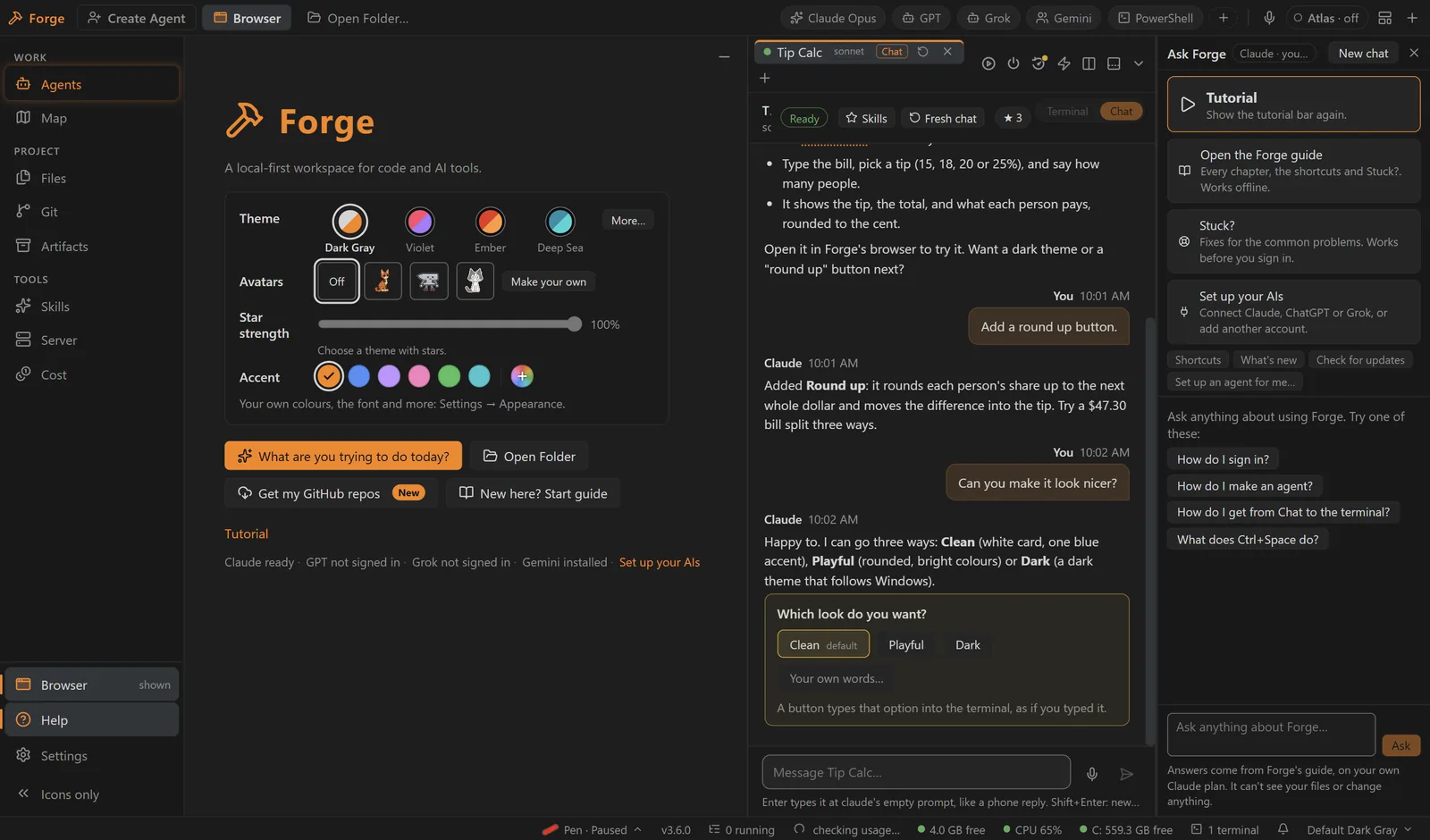
From Forge's tutorial: a job, a question answered with a button, and a peek at the terminal.
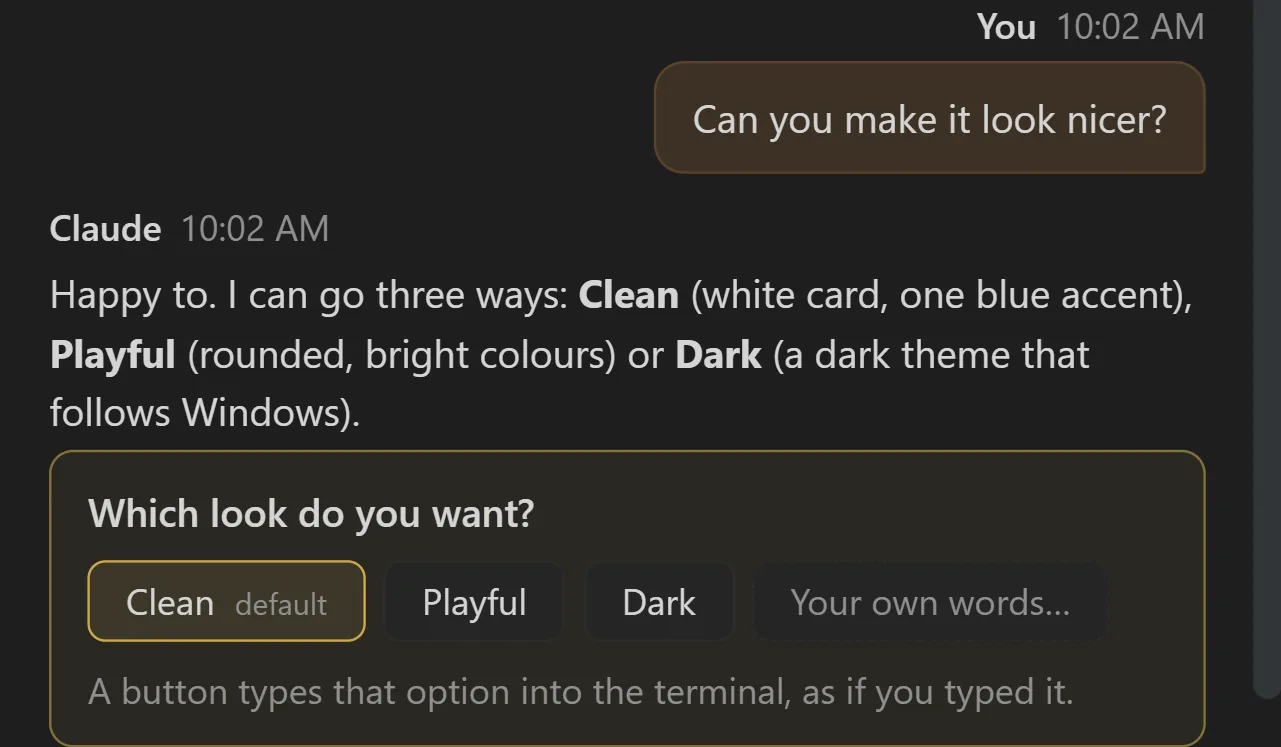
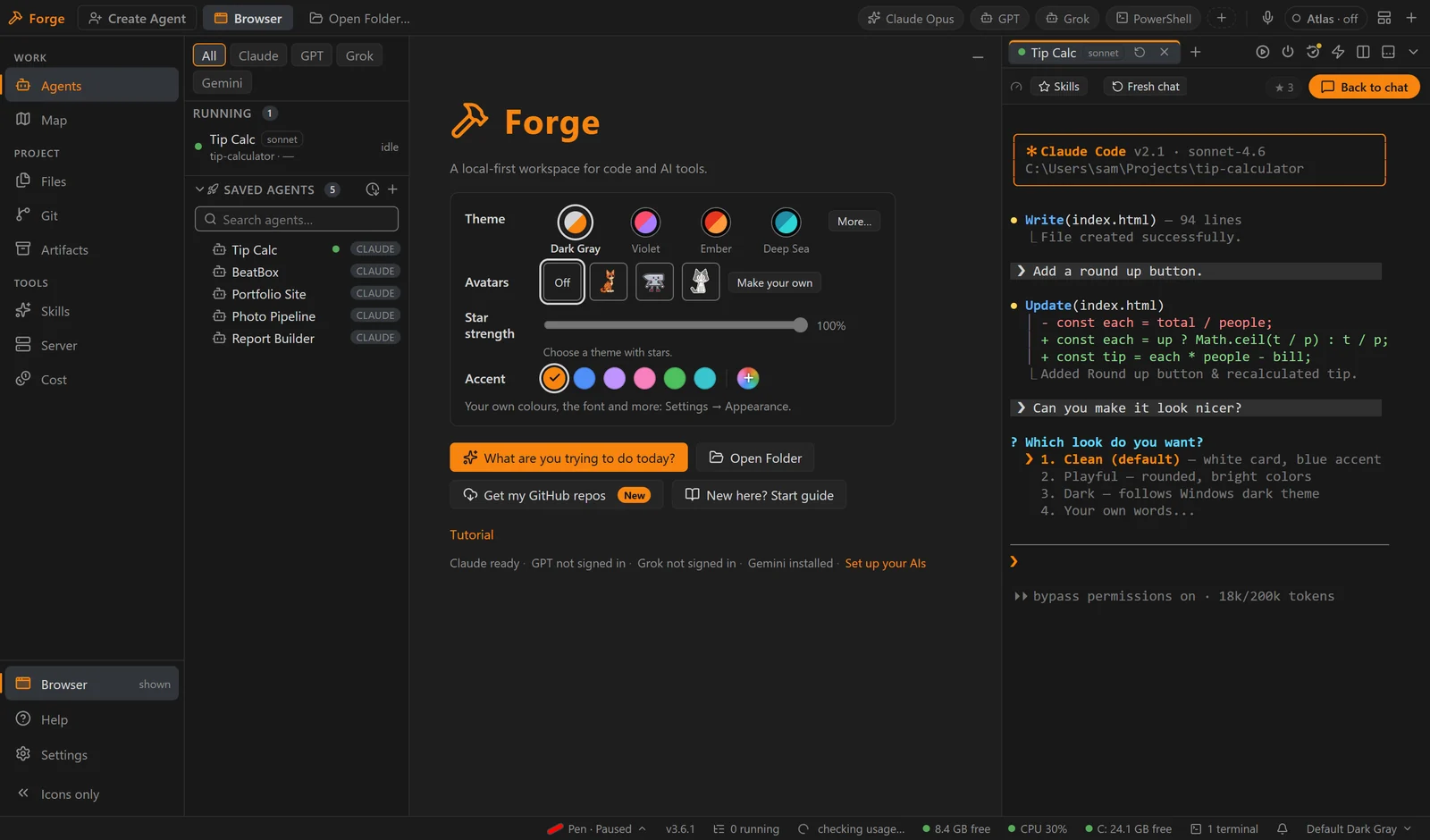
Your agent shows each step as it works. When it has a choice for you, the choices come as buttons. A button types that option into the terminal, as if you typed it.
When it's done, click index.html in the chat. It opens in Forge's browser, next to the agent, so you can try it.
Peek underneath. Chat is a view of a real terminal. Click Terminal, or press Ctrl+Shift+Y, to see the same session as code. Nothing restarts. Back to chat, or Ctrl+Shift+Y again, brings you back.
7If you're stuck
Click Help at the foot of the left rail.
Ask Forge: type a question about Forge. Answers come from Forge's guide, on your own Claude plan. It can't see your files or change anything.
Stuck?: fixes for the common problems. It works before you sign in.
Closed Forge, but it's still running?
Closing the window leaves your agents running, and Forge waits in the tray by the clock. Right-click its icon → Quit Forge.
Installing an AI seems stuck?
"Installing… this takes a minute or two" for more than five minutes? Click Show terminal. If it says ENOTFOUND or ETIMEDOUT, check the internet connection, then Try again.