Forge guide
Everything the tutorial in Forge shows, on one page. Forge has this guide built in too, and it works offline.
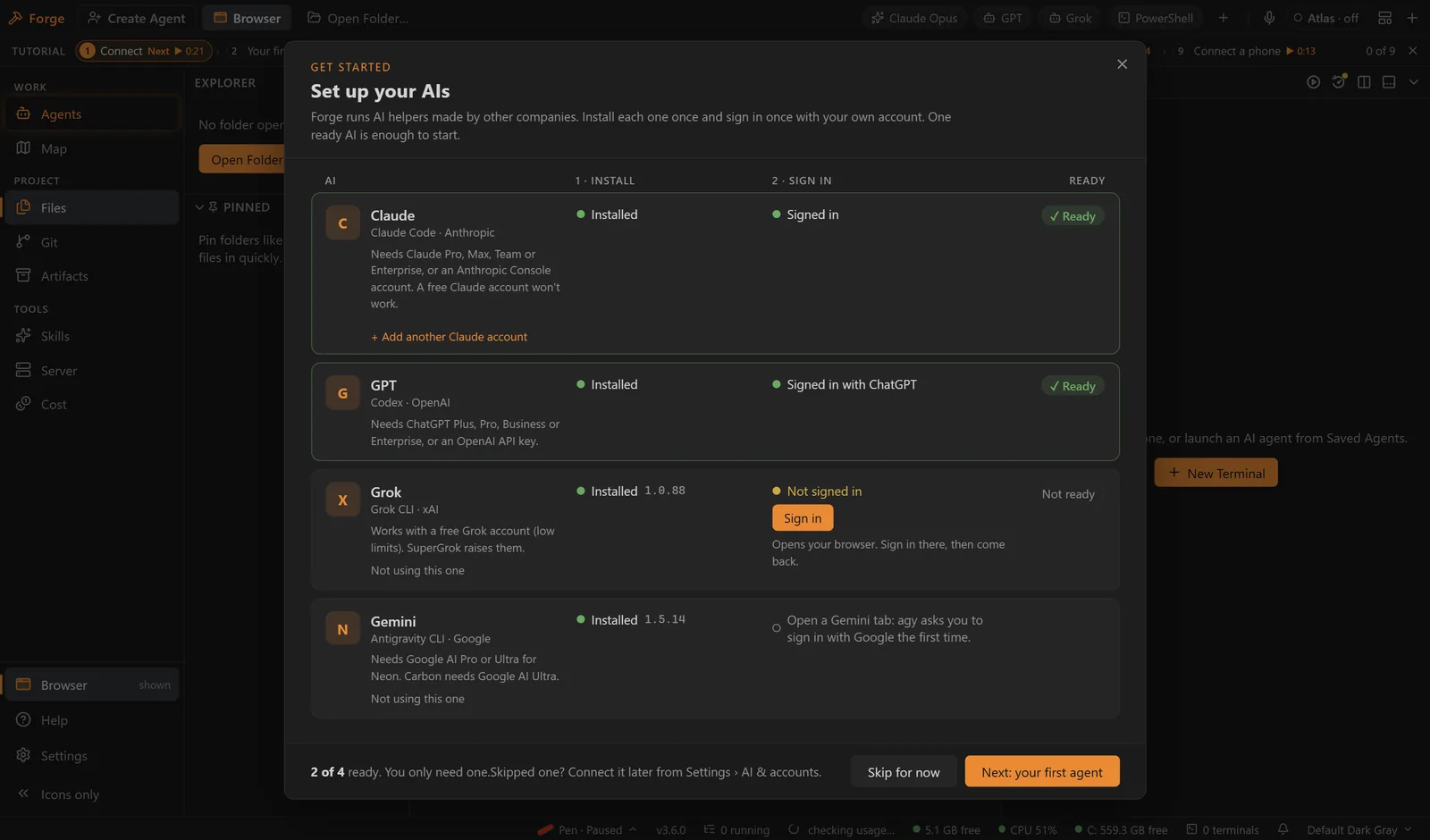
1. Connect your AI
Connect the AI accounts you have, once. Forge installs each tool and you sign in once, in your browser.
- Connect your AI. Each AI has its own Connect: connect one, two or all three, in any order. Forge installs its tool and opens your browser to sign in, once. Skipped one? Connect it later from Settings › AI & accounts.
In Forge: click Connect in the Tutorial bar, then Start.
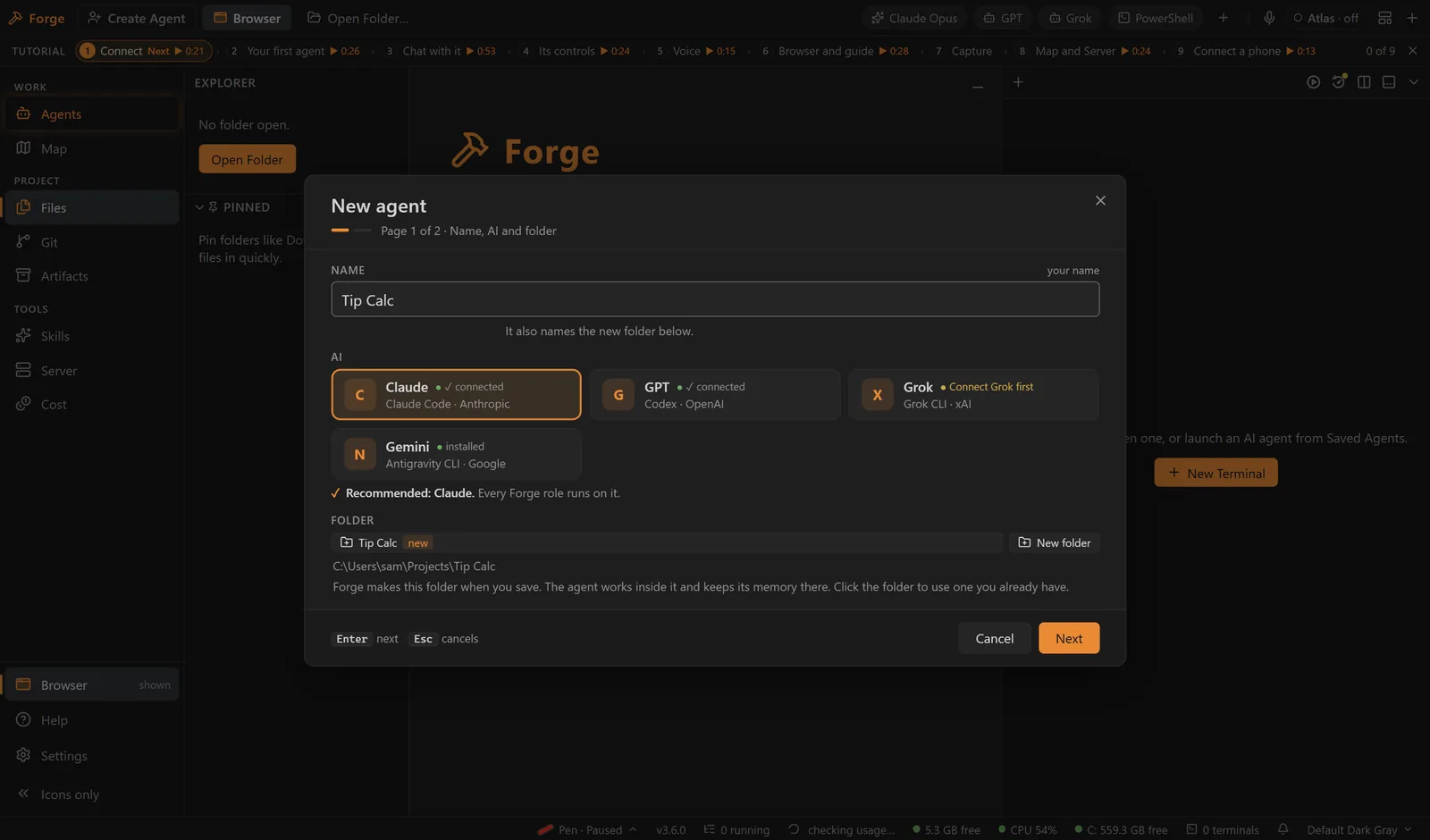
2. Make your first agent
Every agent starts at + Create Agent in the top bar. Make your first one there, with pointers on the real form.
- Every agent starts here. Click Create Agent, up here. It's how you make every agent: this one and the next.
- Name it. Type a name. It also names the new folder in
Documents\Forge, and both change as you type. A name that is taken gets " 2". - Choose its folder. It works in one folder: a new one named after it, or a folder you already have. Renaming the agent never renames a folder. Then press Next.
- Pick its role. On Claude, Orchestrator is recommended: it does small jobs itself and plans bigger ones by starting helper agents. On ChatGPT it is recommended only when Claude is connected too, since its helpers run on Claude. Model and effort start on that AI's own defaults.
- Works without asking. Checked, it works without stopping to ask; each AI's own flag decides how far that goes. Unchecked, it asks first. Either way you can stop it any time.
- Create it. Press Create and start. It opens in Chat.
In Forge: click Your first agent in the Tutorial bar, then Start.
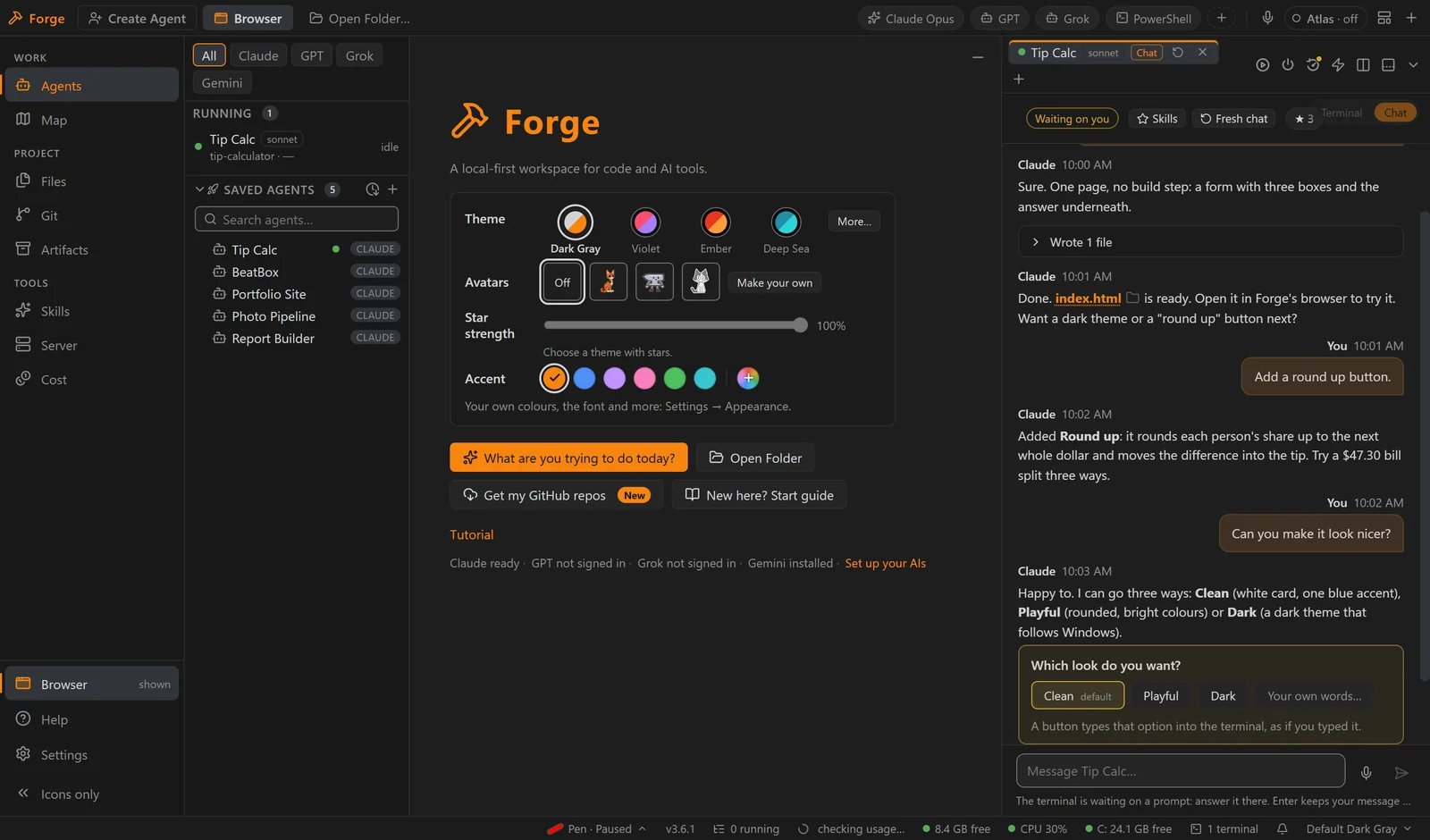
3. Chat with it
Give your agent a first job, then peek at the terminal underneath.
- Give it a job. Type what you want, like a text message, and press Enter. Stuck for an idea? Click the example. Your agent shows each step above.
- Peek underneath. Chat is a friendly view of a real terminal. Click Terminal (or press Ctrl+Shift+Y) to see the same session as code. Nothing restarts.
- Come back to Chat. That's what runs underneath. Click Chat (or Ctrl+Shift+Y again) to come back.
- That's chatting. Keep going in Chat. When your agent wants to change a file, it asks first with a card, unless Works without asking permission was on.
In Forge: click Chat with it in the Tutorial bar, then Start.
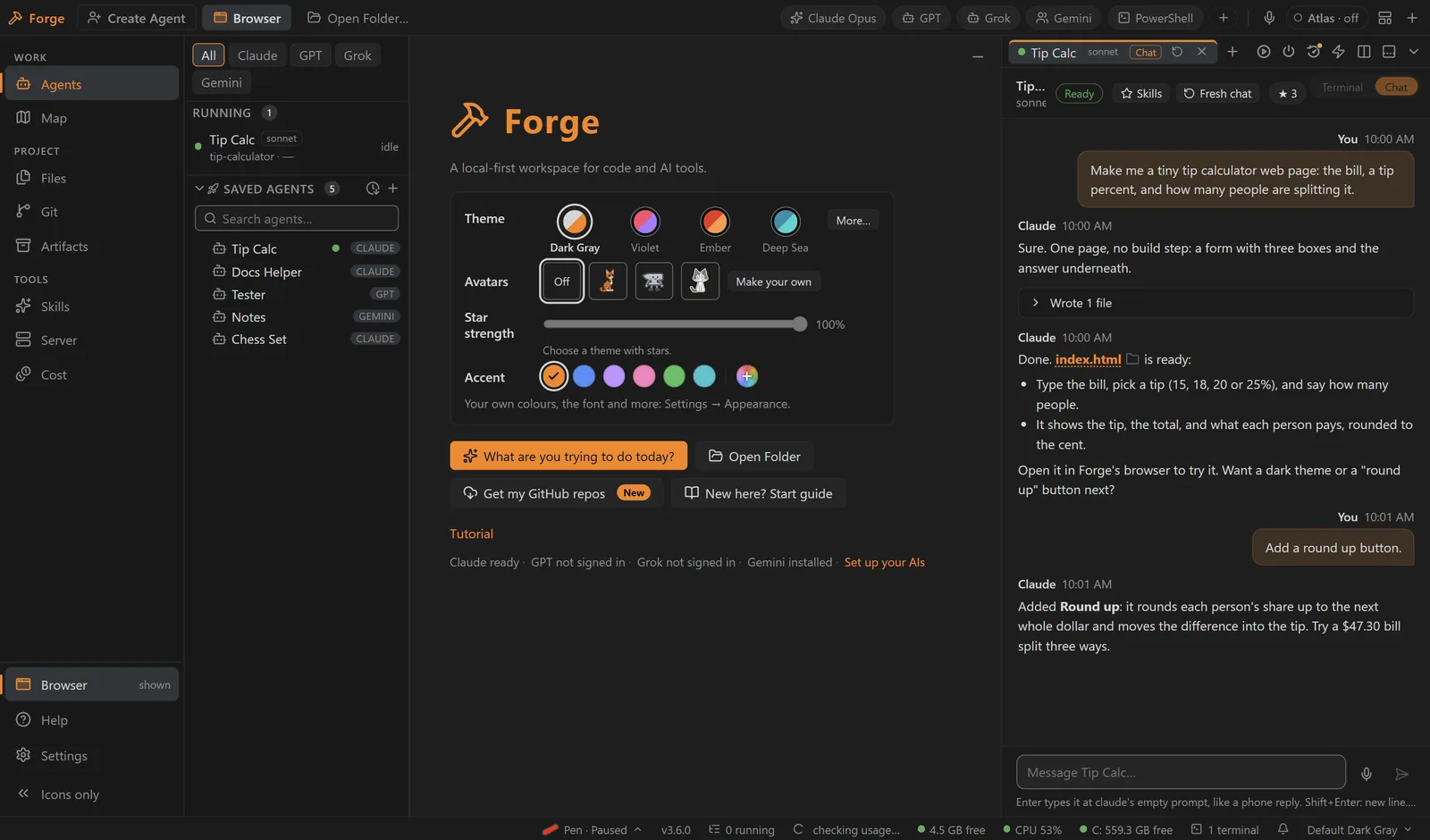
4. Your agent's controls
The strip along the top of the tab: usage, skills, model and effort, a fresh chat, and the account.
- How much of your plan is used. This meter fills as your agents work and empties on its own. Hover it to see when it refills.
- Skills. Skills are saved instructions an agent can follow, like "review my code". Star the ones you like and they sit here, one click away.
- Model and effort. Which model your agent uses and how hard it thinks. Click to change. More effort is slower and uses more of your plan.
- Start a fresh chat. Changing topic, or it got muddled? Fresh chat starts your agent over in the same folder. It asks first, your files stay, and the earlier chat is saved.
- Which account it runs on. With more than one Claude account, a chip on the tab says which one this agent uses; click it to move the tab to another. The chat is kept.
In Forge: click Its controls in the Tutorial bar, then Start.
5. Talk instead of typing
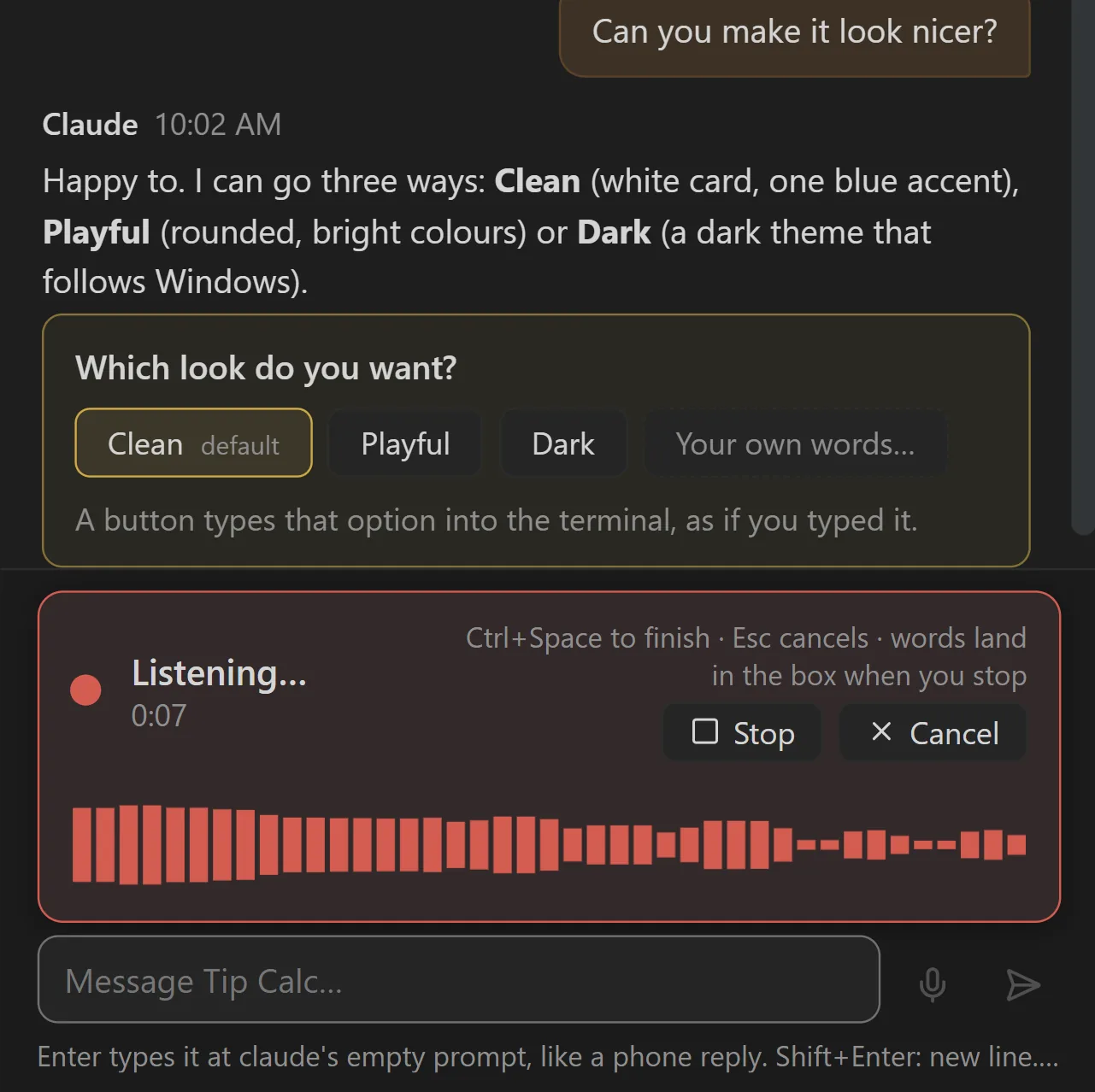
Talk to your agent instead of typing. Forge gets voice ready in the background after your first agent, so it works when you get here.
- Talk instead of typing. Press Ctrl+Space (or click the mic), talk, and press it again. Your words land in the message box; nothing sends until you press Enter. The speech engine and model (about 158 MB, once) download in the background after your first agent.
In Forge: click Voice in the Tutorial bar, then Start.
6. The browser and your Forge guide
Files, web pages and links open inside Forge. Open the Forge guide, make it wider, hide it, bring it back.
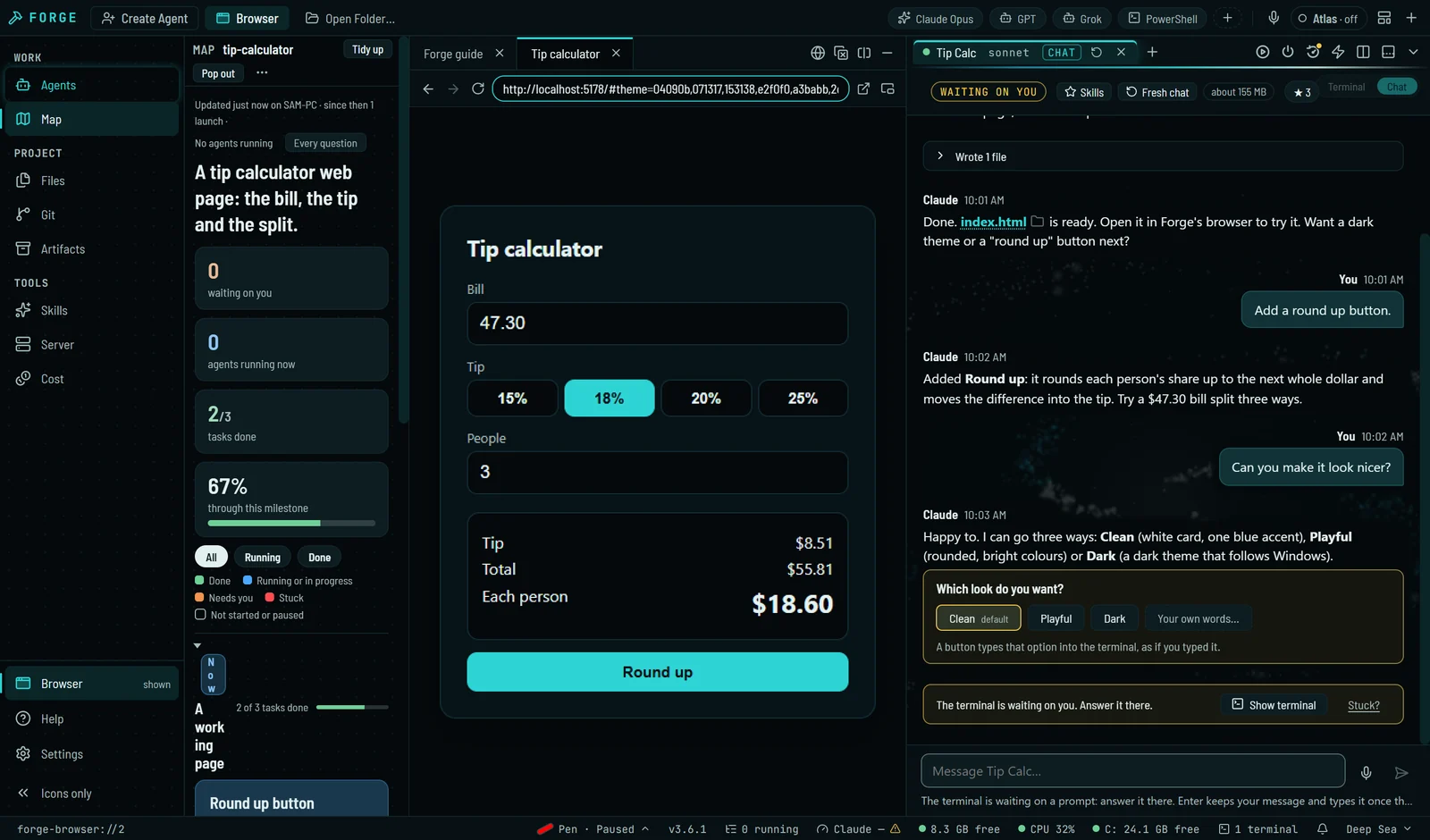
- Open the Forge guide. Forge leaves a file in your agent's chat: the Forge guide. Click it. Files, pages and links in Chat open inside Forge.
- It opens in the middle. This is Forge's browser. The guide is yours to keep: every chapter, the shortcuts and Stuck?, and it works offline.
- Make it wider or narrower. Drag the line between the middle and your agent to give either more room.
- Hide it. Want your agent big? Click the minus: the middle hides and the agent takes the whole width.
- Bring it back. Click Browser on the left rail. The guide is where you left it.
- That's the browser. Pages your agent opens show up here on their own (Settings › Show pages agents open, on by default). The guide is always one click away: ? › Open the Forge guide.
In Forge: click Browser and guide in the Tutorial bar, then Start.
7. Capture: show it your screen
Grab part of your screen and hand it to your agent. Try it on a sample picture.
- One shot: F9. Press F9, then drag a box over part of your screen: that picture goes to your agent. Capture keys work even when another app is in front. On a laptop, hold Fn if F-keys change the volume.
- Keep a box: Shift+F4, then F4. Press Shift+F4 and drag a box: Forge keeps it for this project. Then F4 on its own grabs the same box again, no dragging.
- Optional: the capture card. Every capture is on your clipboard too, so you can just paste it into your agent's message box with Ctrl+V. Or use the capture card in the corner: F8 puts them in the message box, Shift+F8 puts the card away (the picture stays in Captures). Nothing sends until you press Enter.
- The other capture keys.
Ctrl+F4 Capture and add a spoken note Ctrl+G / Alt+G Burst: one frame per press, then end it F6 / Shift+F6 Record the box to MP4, then stop (needs ffmpeg) F7 Open the captures folder - Change the keys. Every capture key can be changed, or turned off, in Settings › Capture.
In Forge: click Capture in the Tutorial bar, then Start.
8. The Map, the Server, and the rest
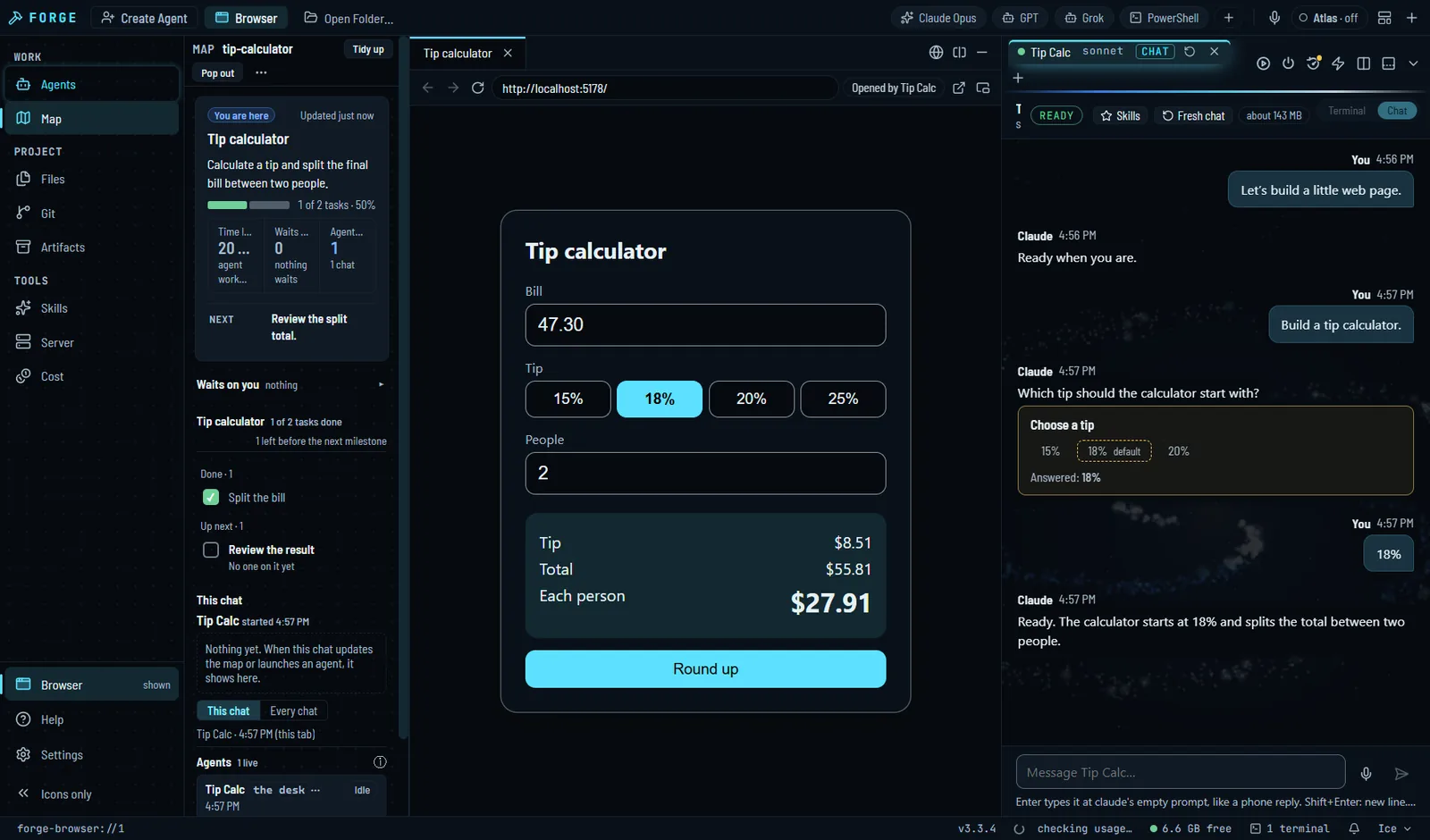
Two items on the left rail: the Map lets you easily track your tasks and projects, and the Server is about this computer. Then the rest of the rail.
- Open the Map. Click Map on the left rail.
- What the Map shows. Your tasks and projects: what your Orchestrator planned, which runs are going, and the questions waiting for your answer. It's empty until an Orchestrator plans a bigger job; then it fills in by itself.
- Open the Server. Further down the rail, Server is about this computer. Click it.
- Server mode. Server mode is off, and most people leave it off. Turn it on only on the one computer you leave running for your phone: it stays awake, restarts itself after updates, and pushes your phone when an agent needs you. Under it, Jobs is work this computer was offered, and every job asks before it starts. The gear opens Settings › This PC.
- The rest of the rail. Files, Git, Skills, Artifacts and Cost are worth a look when you're ready. Agents lists every agent you've made. Every keyboard shortcut is under ? › Shortcuts.
In Forge: click Map and Server in the Tutorial bar, then Start.
9. Connect a phone
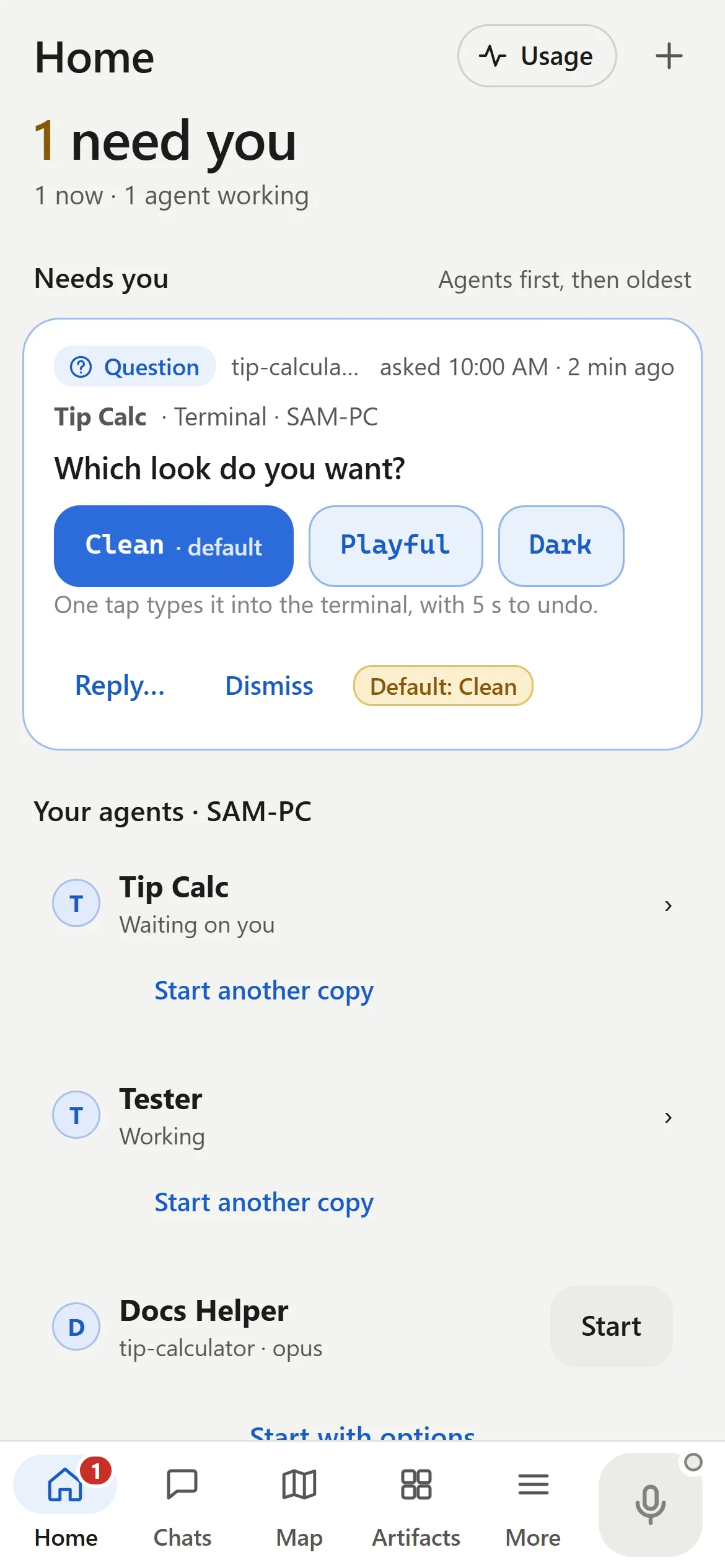
Watch and answer your agents from your phone. The tutorial shows where; you connect one yourself, with your phone in your hand.
- Phones connect in Settings. Click Settings (the gear) at the foot of the left rail.
- Connect another computer or phone. This is where a phone or another computer connects: show a code here, then scan it with your phone, or type it in the Forge app or on the other computer. No invite word. When your phone is in your hand, press it yourself: the tutorial never does.
In Forge: click Connect a phone in the Tutorial bar, then Start.
Shortcuts
| Ctrl+Shift+Y | Switch an agent's tab between Terminal and Chat |
| Ctrl+Space | Voice input: press, speak, press again |
| Shift+F4 | Pick the box to capture |
| F4 | Capture the box |
| F9 | One box, one shot (your saved box is kept) |
| Ctrl+F4 | Capture and add a spoken note |
| Ctrl+G | Burst: one frame per press |
| Alt+G | End the burst |
| F6 | Record the box to MP4 |
| Shift+F6 | Stop recording |
| F7 | Open the captures folder |
| F8 | Insert the capture |
| Shift+F8 | Dismiss the capture |
| Ctrl+Shift+A | Agents panel |
| Ctrl+Shift+J | Jump to the oldest terminal waiting on you |
| Ctrl+` | Show or hide the terminals |
| Ctrl+Shift+` | New terminal |
| Ctrl+Shift+T | Reopen a closed terminal |
| Ctrl+Shift+E | Files |
| Ctrl+Shift+G | Git |
| Ctrl+Shift+M | Map |
| Ctrl+Shift+B | Show or hide the Browser |
| Ctrl+B | Show or hide the panel beside the rail |
| Ctrl+O | Open folder |
| Ctrl+S | Save |
| Ctrl+, | Settings |
Change the capture keys in Settings › Capture, the others in Settings › Keyboard.
Stuck?
| "Windows protected your PC" | More info → Run anyway. Forge isn't code-signed yet. |
| "Installing Claude Code…" for more than five minutes | Show terminal. If it says ENOTFOUND or ETIMEDOUT, check the internet connection, then Try again. |
| "Couldn't install Claude Code" | Click Try again. Still failing? Check the internet connection, then Copy diagnostics and send them to whoever set you up. |
| "Still waiting for the browser" | Open the sign-in page again. The sign-in tab may be behind Forge. |
| "Sign-in didn't finish" | Click Show terminal. If it shows a link, open it in your browser. If it says your plan can't be used, sign in with a different account. Then click Try again. |
| "Claude Code needs a paid plan" | Claude Code needs Pro, Max, Team or Enterprise, or a Console account with API billing. |
| Chat says "Nothing to show yet." | Show terminal: claude may be asking something. Answer it there, then Ctrl+Shift+Y. |
| The capture keys don't work | Check Settings → Capture is on, and that another app isn't using F4. |
| Forge closed but is still running | It's in the tray (by the clock). Right-click → Quit Forge. |
| My agent stopped answering | A pulsing dot means it's still working. Press Esc in its chat to stop it, then send again. If nothing moves for minutes, close the tab and start it again from Agents. |
| I picked the wrong folder | Agents → the agent's Edit → choose the folder, then restart its tab. |
| It's asking me something in the terminal | Ctrl+Shift+Y goes back to Chat, where most questions show as buttons. Otherwise use the arrow keys and Enter. |
| Something else | Copy diagnostics (in Forge: Help › Stuck? Fixes for common problems) copies Forge’s version, Windows build, tool versions and the last 40 log lines, with your home folder shown as ~. It goes to the clipboard only. |
The same guide is built into Forge: Help at the foot of the left rail › Open the Forge guide. It works offline. For more fixes, see Help; for the first ten minutes with pictures, Getting started.